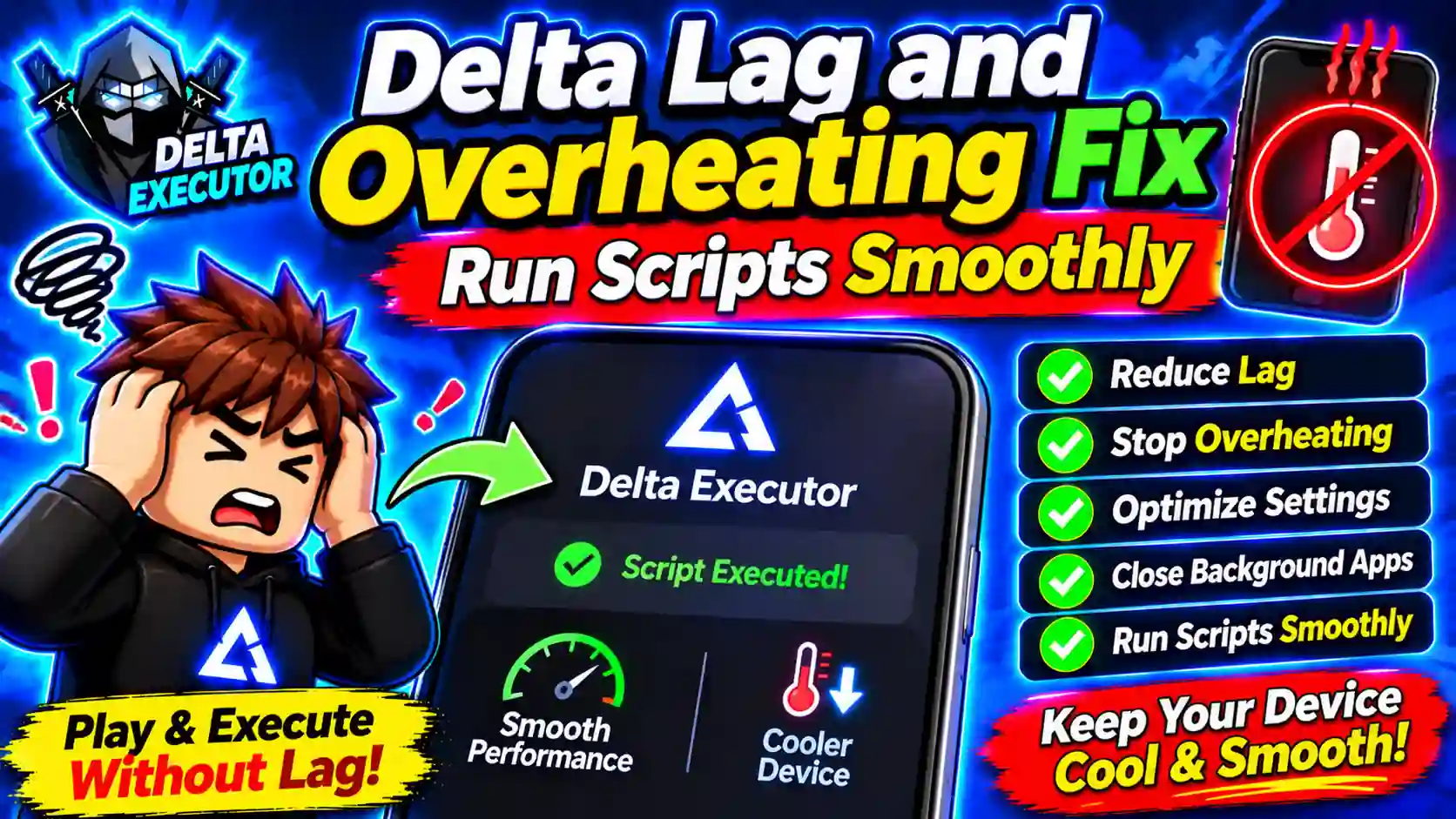
Delta Lag and Overheating Fix: Run Scripts Smoothly
Your phone used to run Roblox at 60 FPS. Then you installed Delta Executor, loaded a big hub, and now it stutters, drops frames, and gets so hot you can barely hold it. Worse, Roblox itself crashes mid-script because the system runs out of memory. None of this is unexpected. Delta plus Roblox plus a feature-heavy hub is the biggest load most phones ever carry, and if you do not tune for it, performance collapses. The fixes are real, and they are stackable. This guide covers every cause of Delta lag and overheating, the fixes that actually help, and the practical script and settings changes that get you back to smooth gameplay on Android, iOS, and PC.
Why Delta Causes Lag in the First Place
Lag is almost always a resource problem: your device does not have enough CPU, RAM, or GPU headroom to run everything you asked it to. Delta plus Roblox plus a big script hub is a lot.
Where the load comes from
- Roblox itself: Even a simple game uses 1 to 1.5GB of RAM and consistent CPU for rendering.
- Delta Executor: The executor adds around 200 to 400MB of RAM overhead for its injection, GUI, and script runtime.
- Loaded script hub: Modern hubs with ESP, auto-farming, and teleport features can use another 150 to 300MB and consistent CPU for their background loops.
- Background apps: YouTube, Discord, Instagram, and other apps still running in the background eat RAM you need.
Add it up on a 4GB phone and you are near the ceiling. On a 2GB phone, you are past it. The system starts swapping memory, killing background apps, and reducing CPU frequency. Lag is what you see as the result.
Why Delta Overheats Your Phone
Overheating is a CPU and GPU problem. Modern phones are thermally capable of short bursts of maximum power but not sustained load. Delta sessions, especially AFK farming, are sustained load.
Where the heat comes from
- CPU under sustained load: Delta’s script runtime executes constantly. ESP loops, auto-farm scripts, and anti-AFK scripts all fire on every frame, keeping the CPU at high frequency.
- GPU rendering the game: Roblox renders your world continuously. Higher graphics settings use more GPU power.
- Charging while playing: Phone battery heat and chipset heat compound. Charging a phone while playing is the single biggest overheating multiplier.
- Case trapping heat: Thick phone cases prevent heat from radiating out. Your phone throttles to prevent damage.
- Ambient temperature: Playing outdoors in sunlight or in a hot room pushes the phone from “warm” to “throttling.”
What happens when a phone overheats
Modern phones have thermal throttling: when CPU or GPU hits a target temperature (usually 45 to 50 degrees Celsius), the chipset reduces frequency to cool down. You see this as framerate dropping from 60 to 30 FPS mid-session for no apparent reason. The game did not change; the phone just lowered its own clocks.
Consistent thermal throttling over months degrades lithium-ion batteries faster. If your phone runs hot every single Delta session, your battery health drops faster than normal. The fixes in this guide help both performance and battery life long-term.
Lag vs Overheating (Which One Do You Have?)
Both feel similar at first (dropped frames, stutters), but the causes are different and so are the fixes. Figure out which one you have.
| Symptom | Lag | Overheating |
|---|---|---|
| Starts | Immediately on script execution | After 10 to 30 minutes of play |
| Phone temperature | Normal to warm | Hot to the touch |
| Frame rate pattern | Consistent low (e.g. always 20 FPS) | Starts smooth, degrades over time |
| Battery drain | Normal | Faster than usual |
| Recovers on restart | Yes (full performance back) | No (still throttling until cool) |
| Root cause | Not enough RAM or CPU for the load | Sustained CPU/GPU heat |
| Fix category | Reduce load (lighter scripts, fewer apps) | Reduce heat (cooling, lower graphics) |
You can have both at once. Heavy script hubs on a 3GB phone cause lag immediately and overheat over 30 minutes. The fixes stack: reduce load to fix lag, add cooling to prevent overheating.
Universal Performance Fixes
These work for everyone, no device-specific setup needed. Apply them in order.
- Close every background app. Swipe YouTube, Discord, Instagram, and browser tabs out of recents. Each one is RAM you could use for Roblox and Delta.
- Lower Roblox graphics to level 1 or 2. This single change often doubles your framerate. The setting is in Roblox’s menu during gameplay.
- Disable Roblox HD textures and shadows. Same menu. Both are major GPU hogs.
- Use lighter scripts. A standalone ESP uses far less RAM than a full hub. Our scripts hub tags which are lightweight.
- Reboot the device before every long session. A fresh boot has the most available RAM and the coolest baseline temperature.
- Remove your phone case during long sessions. Heat radiates out faster.
- Avoid charging while playing. Charge beforehand to 80 to 90 percent. Play unplugged. Charge again after.
- Play in a cool room. Even 5 degrees ambient temperature difference changes how long before your phone throttles.
Roblox Graphics Settings for Delta Sessions
Roblox’s graphics controls are the biggest single lever for performance. Set them aggressively for Delta sessions, even if you prefer higher visuals in casual play.
Recommended settings for Delta
| Setting | Recommended Value | Why |
|---|---|---|
| Graphics Quality | 1 or 2 | Biggest single FPS gain. Level 1 looks blurry but runs smooth. |
| Graphics Mode | Manual | Prevents Roblox from auto-ramping settings up and causing frame drops. |
| HD Textures | Off | Major GPU savings. Textures look lower-res but game is playable. |
| Reduced Shaders | On | Simplifies shader math per frame. Big win on mid-range phones. |
| UI Navigation Shortcut | Off | Minor savings, but one less thing to render. |
| Fullscreen Mode | On (desktop) | On desktop, fullscreen releases the GPU from compositing with other windows. |
When you can afford higher settings
If you have a flagship phone (6GB+ RAM, modern chipset) and only play lightweight scripts, Graphics Quality 5 to 7 is fine. The rule scales with hardware: more RAM, more CPU, more GPU, more graphics headroom.
Pick Lighter Scripts (Biggest Performance Lever)
Script choice affects performance more than almost anything else. A hub with full ESP, chams, hitbox extenders, and auto-farm running on every frame can cost 30 to 50 percent of your available performance.
Heavy script categories
Full game-specific hubs
Universal hubs with 50+ features running simultaneously. Even features you disable still get checked on every frame.
ESP with chams
Chams render every player’s silhouette on every frame. Doubles GPU load.
Auto-farm with teleport
Teleport loops fire the physics engine constantly, hurting CPU.
Aimbot with visibility checks
Raycasts every frame to check line-of-sight. Noticeable but manageable.
Standalone ESP (no chams)
Just tags over players. Light on GPU but still a frame-loop cost.
Walk speed and jump power
Fire once on attach, then a small per-frame enforcement. Negligible cost.
Anti-AFK
Idle timer prevention. Fires every 10 to 15 minutes. Essentially free.
Infinite Yield (idle)
IY uses no frame cycles unless you type a command. Load it once, forget it.
Strategy for low-end devices
Load the hub, open its menu, disable every feature you do not actively need. Many hubs let you disable per-frame checks for features you turned off. Also prefer standalone scripts over full hubs: a standalone Twisted ESP for Dandy’s World runs much lighter than loading the whole hub.
FPS Boost Script
A short script that removes certain visual effects client-side. Not everything in it works on every Roblox game (some games override), but it is a measurable improvement on mid-range devices.
-- Delta FPS Boost (reduces visual effects client-side)
local Lighting = game:GetService("Lighting")
local Workspace = game:GetService("Workspace")

-- Disable fancy lighting
for _, v in ipairs(Lighting:GetChildren()) do
    if v:IsA("Atmosphere") or v:IsA("BlurEffect")
       or v:IsA("BloomEffect") or v:IsA("DepthOfFieldEffect")
       or v:IsA("SunRaysEffect") or v:IsA("ColorCorrectionEffect") then
        v.Enabled = false
    end
end
Lighting.GlobalShadows = false
Lighting.FogEnd = 1e9

-- Strip particle, trail, and decal detail
for _, obj in ipairs(Workspace:GetDescendants()) do
    if obj:IsA("ParticleEmitter") or obj:IsA("Trail") or obj:IsA("Smoke") or obj:IsA("Fire") then
        obj.Enabled = false
    elseif obj:IsA("Decal") or obj:IsA("Texture") then
        obj.Transparency = 1
    end
end

-- Lift FPS cap on supported Delta builds
if setfpscap then setfpscap(240) end
Save this as part of your autoexecute setup so it runs every session. Real-world results vary by game, but most mid-range phones see a 10 to 20 FPS gain after this fires, and GPU temperature drops noticeably.
Android-Specific Fixes
- Enable Developer Options and set Animations to 0.5x or Off. Settings > About Phone > tap Build Number 7 times > then Settings > System > Developer Options > Window/Transition/Animator scale. Snappier UI, lighter rendering cost.
- Turn off Adaptive Battery and Battery Saver. These throttle CPU to save battery, but they cripple Roblox and Delta. Settings > Battery > disable Adaptive Battery during gameplay.
- Set Delta and Roblox as “No Restriction” in Battery. Settings > Apps > Delta/Roblox > Battery > Unrestricted. Prevents Android from throttling them in background.
- Set Delta and Roblox to High Performance in Graphics. On Samsung/OnePlus: Settings > Advanced features > Game Launcher or Game Mode. On Xiaomi: Settings > Special features > Game Turbo.
- Enable Game Mode or Performance Mode. Most Android brands include a “Game Mode” that frees RAM and boosts CPU. Turn it on before launching Roblox.
- Clear Roblox cache. Settings > Apps > Roblox > Storage > Clear Cache. Old cache fragments can hurt performance.
- Disable auto-brightness. Set manual mid-brightness. Auto-brightness constantly recalculates and wastes CPU.
- Connect to 5GHz WiFi, not 2.4GHz. 2.4GHz has more interference and higher ping. For related network-caused issues, see our VNG Error 261 guide.
iOS-Specific Fixes
- Enable Low Power Mode strategically. Low Power Mode throttles CPU, which hurts Roblox. But if your iPhone is overheating, Low Power Mode cools it down. Toggle based on symptom.
- Disable Background App Refresh. Settings > General > Background App Refresh > Off or WiFi only. Frees up CPU and battery.
- Close every background app before launching Roblox. Double-tap Home button (or swipe up and hold), swipe all cards away.
- Disable Reduce Motion if performance is fine. Reduce Motion saves power but makes transitions choppy. Settings > Accessibility > Motion.
- Disable Automatic Downloads. Settings > App Store > Automatic Downloads > off for everything. Prevents iOS from downloading updates during gameplay.
- Turn off iCloud Photos sync temporarily. Settings > your name > iCloud > Photos > off. iCloud uploads in background during gameplay cause stutters.
- Reboot the iPhone before long sessions. Clears memory pressure that accumulates over days.
- If Delta iOS itself is buggy, see Delta iOS not opening fix.
Windows PC Fixes
- Set Power Mode to Best Performance. Settings > System > Power > Power Mode. Prevents Windows from throttling the CPU.
- Close background processes. Task Manager > Processes > end everything you do not need (OneDrive, Teams, Spotify, browser tabs eating RAM).
- Set Roblox and Delta to High priority. Task Manager > Details > right-click RobloxPlayerBeta.exe > Set priority > High.
- Update your GPU drivers. Nvidia, AMD, or Intel. Current drivers include game-specific optimizations.
- Enable Game Mode. Settings > Gaming > Game Mode > On. Windows reserves resources for the foreground game.
- Disable Fullscreen Optimizations for Roblox. Right-click RobloxPlayerBeta.exe > Properties > Compatibility > Disable Fullscreen Optimizations.
- Lock to 60 or 144 FPS. An uncapped FPS run means your GPU works harder than needed and runs hot. Cap via Nvidia Control Panel or AMD Radeon Settings.
- Use a wired ethernet connection if you can. WiFi jitter causes feel-like-lag that is actually network related.
- For related PC setup, see our Delta for PC guide.
Physical Cooling for Phones
Software tuning helps, but physics is physics. Heat has to go somewhere. For long sessions, cooling hardware is worth it.
Clip-on phone coolers
$15 to $40 devices that clip to your phone’s back and actively cool it with a Peltier element or small fan. Brands like Black Shark FunCooler, Red Magic cooler, and Razer Phone Cooler are the best known. For AFK overnight farming especially, a cooler drops chipset temperature by 10 to 20 degrees Celsius.
Phone tripod with airflow
Prop your phone up on a tripod with the back exposed. Place a desk fan blowing across the back. Simple, free if you already have a fan, and effective.
Remove the case
Thick rubber cases trap heat. For long sessions, pop the case off. Put it back on after.
Metal surface
Setting the phone on a metal surface (like a laptop body or metal desk) dissipates heat faster than a wood or plastic surface. Avoid cloth, blankets, bed covers, or pillows; those trap heat terribly.
Avoid direct sunlight
Playing outside with the phone screen in sunlight adds radiative heat on top of chipset heat. Shade or indoor play helps a lot.
If your phone is already running at max CPU and GPU frequency, cooling will NOT give you more performance. It just lets the phone sustain max frequency longer before throttling kicks in. If you want a persistent frame rate boost, software tuning (graphics, scripts, settings) is what gets you there. Cooling buys you time, not more peak performance.
Memory Management (RAM Optimization)
Running out of RAM causes lag even if your CPU and GPU are fine. Delta plus Roblox plus a hub needs around 2 to 3GB free for comfortable play.
Check your available RAM
On Android: Settings > About Phone > Device info > Memory (or similar). On iOS: Apple does not expose RAM but apps like System Status show it indirectly. On Windows: Task Manager > Performance > Memory.
Rules by RAM tier
- 2GB phones: Delta works but expect constant memory pressure. Load one script, not a full hub. Close every other app.
- 3GB phones: Sweet spot for Delta. One hub plus Roblox fits in memory. Keep background apps minimal.
- 4GB phones: Comfortable. Full hubs plus a couple of light apps in the background work fine.
- 6GB+ phones: Overkill for Delta specifically. You can have anything you want running.
Memory-saving habits
- Close background apps before launching Roblox.
- Use standalone scripts instead of full hubs where possible.
- Reboot before every long session.
- Skip loading Infinite Yield plus a game-specific hub plus three utility scripts; pick the two you actually need.
- Avoid screen recording while playing. Recording apps eat RAM.
For Delta crashes that look like RAM exhaustion, our dedicated Delta crash guide covers memory-specific troubleshooting.
Overnight AFK Farming Without Cooking Your Phone
Long AFK farming sessions (Fisch, Grow a Garden, The Forge) are the biggest overheating offenders. Here is how to run them safely.
- Use PC if available. Desktops and laptops handle sustained load far better than phones. Our Delta for PC guide covers setup.
- If using a phone, remove the case.
- Prop the phone on a stand with airflow around all sides. Not on your bed, not on a desk flat against the surface.
- Point a desk fan at the back of the phone. Even a cheap USB-powered fan makes a huge difference.
- Lower screen brightness to minimum. Reduces screen heat and saves battery.
- Lower Roblox graphics to 1. Minimizes GPU heat.
- Do not charge while farming. Charge beforehand to 80 to 90 percent, then unplug.
- Enable anti-AFK. So Roblox does not kick you after 20 minutes. Our autoexecute guide has the anti-AFK script.
- Pick ONE light farm script. Do not stack multiple hubs. One auto-mine or auto-fish is enough.
- Check the phone every few hours. If it is hot to the touch, pause for 10 minutes to cool down.
For true overnight sessions
Honestly, phones are not designed for 8+ hour continuous workloads. Battery health drops faster, thermal paste dries out faster, and you risk permanent damage. If you do overnight farming regularly, invest in a PC or a cheap secondary device just for farming. A used Redmi Note or Samsung A-series for $80 to $120 handles AFK farming without endangering your main phone.
When to Upgrade Your Device
Not every performance problem has a software fix. Some phones are fundamentally too old or too weak for modern Delta plus Roblox plus hubs.
Signs you have hit a hardware wall
- You applied every fix in this guide and still see 20 FPS or less.
- Delta crashes on hub load even with other apps closed.
- Your phone throttles within 5 minutes of play.
- Battery drops 30 percent per hour even unplugged.
- The device is 5+ years old with fewer than 3GB RAM.
Good upgrade targets
You do not need a flagship. A mid-range phone from the last 2 to 3 years is fine. For our full compatibility breakdown, see our Delta compatibility guide. Target specs:
- 4GB RAM minimum, 6GB preferred.
- Snapdragon 7-series or Dimensity 7000-series chipset or newer.
- Android 12 or iOS 15+.
- At least 128GB storage.
Dedicated farming device
If your main phone is nice but you do a lot of AFK farming, consider a cheap second phone just for Delta sessions. A $100 used Redmi Note or Samsung A-series handles Delta well, keeps your main phone cool, and does not risk your primary device’s battery for farm gains.
The Bottom Line
Delta lag comes from load (too much running on not enough hardware); Delta overheating comes from sustained CPU/GPU use without heat dissipation. Fix lag by lowering Roblox graphics to 1, closing background apps, choosing lighter scripts, running the FPS boost script, and matching your scripts to your device’s RAM tier. Fix overheating by removing your phone case, avoiding charging while playing, using a stand with airflow, and for serious AFK farming, investing in a clip-on cooler or a secondary device.
Download Delta Executor only from deltaexecutions.com. For related issues, see our crash guide, compatibility specs, and script library.
Frequently Asked Questions
Why does Delta Executor lag my phone?
Delta Executor adds roughly 200 to 400MB of RAM overhead on top of Roblox itself. A loaded script hub adds another 150 to 300MB and runs background loops on the CPU. On phones with 2 to 3GB RAM, the total exceeds available memory and the system starts swapping, throttling, and killing apps. Fix by closing background apps, lowering Roblox graphics to 1, and using lighter scripts instead of full hubs.
Why does my phone get hot when running Delta?
Delta plus a script hub keeps the CPU at high frequency continuously. Combined with Roblox’s GPU load for rendering, your phone chipset generates sustained heat. Modern phones are designed for short bursts of max power, not multi-hour sessions. Charging while playing, thick phone cases, and warm ambient temperatures all make it worse. Fix by removing the case, playing unplugged, using a stand with airflow, and for long sessions, investing in a clip-on phone cooler.
What Roblox graphics settings help with Delta lag?
Set Graphics Quality to 1 or 2, Graphics Mode to Manual (not Automatic), turn off HD Textures, and enable Reduced Shaders. These together often double frame rate on mid-range phones. The game looks visibly rougher but runs smoothly, which matters more for script sessions where you need stable FPS to see what is happening.
Can I farm overnight on my phone with Delta?
Technically yes, but phones are not designed for sustained 8+ hour workloads. Battery health drops faster, thermal components wear faster, and you risk damage over time. If you farm overnight regularly, either use a PC or get a cheap secondary phone dedicated to farming. For single overnight sessions, remove the case, use a stand with a fan blowing on the back, do not charge while playing, lower graphics to 1, and check the phone every few hours.
Does Delta Executor damage phone battery?
Not directly. The battery damage comes from sustained heat during long Delta sessions. Lithium-ion batteries degrade faster when they consistently run at 40+ degrees Celsius. Occasional Delta sessions have no meaningful impact. Daily 4+ hour sessions with overheating speed up battery wear noticeably over a year. Mitigate by using the cooling and software tuning in this guide, and by avoiding charging while playing.
What is the minimum RAM for smooth Delta performance?
4GB RAM is comfortable for Delta plus Roblox plus a full hub. 3GB works with some background app management. 2GB works but you must close everything else and stick to lightweight scripts. 6GB or more is overkill but gives you headroom for keeping other apps open. For our full device compatibility breakdown, see the Delta compatibility guide.
How do I check if Delta is causing the lag or the game is?
Join the game without attaching Delta and check your frame rate first. If Roblox already stutters without Delta attached, the game is the problem (lower graphics, close apps). If Roblox is smooth but lags the moment Delta attaches or a script executes, Delta or the script is the cause (pick lighter scripts, run the FPS boost script, disable unused hub features). Both can be true at once on low-end phones.
Are phone coolers worth it for Delta?
For users who do long sessions (2+ hours), overnight farming, or any session where the phone gets uncomfortably hot, yes. A $20 to $40 clip-on cooler drops chipset temperature by 10 to 20 degrees Celsius, which prevents thermal throttling and lets the phone sustain full performance. For casual 30-minute sessions, software tuning alone is usually enough and a cooler is unnecessary.
References
- DeltaExecutions, Delta Executor Performance Hub, deltaexecutions.com
- Roblox Support: Graphics Settings and Performance Documentation
- Android Developers: Thermal Throttling and Performance
- DeltaExecutions internal testing across Android, iOS, and Windows devices (recently updated)



2 Comments