Delta iOS Not Opening: Unable to Verify App, Revoked and Untrusted Developer Fixes
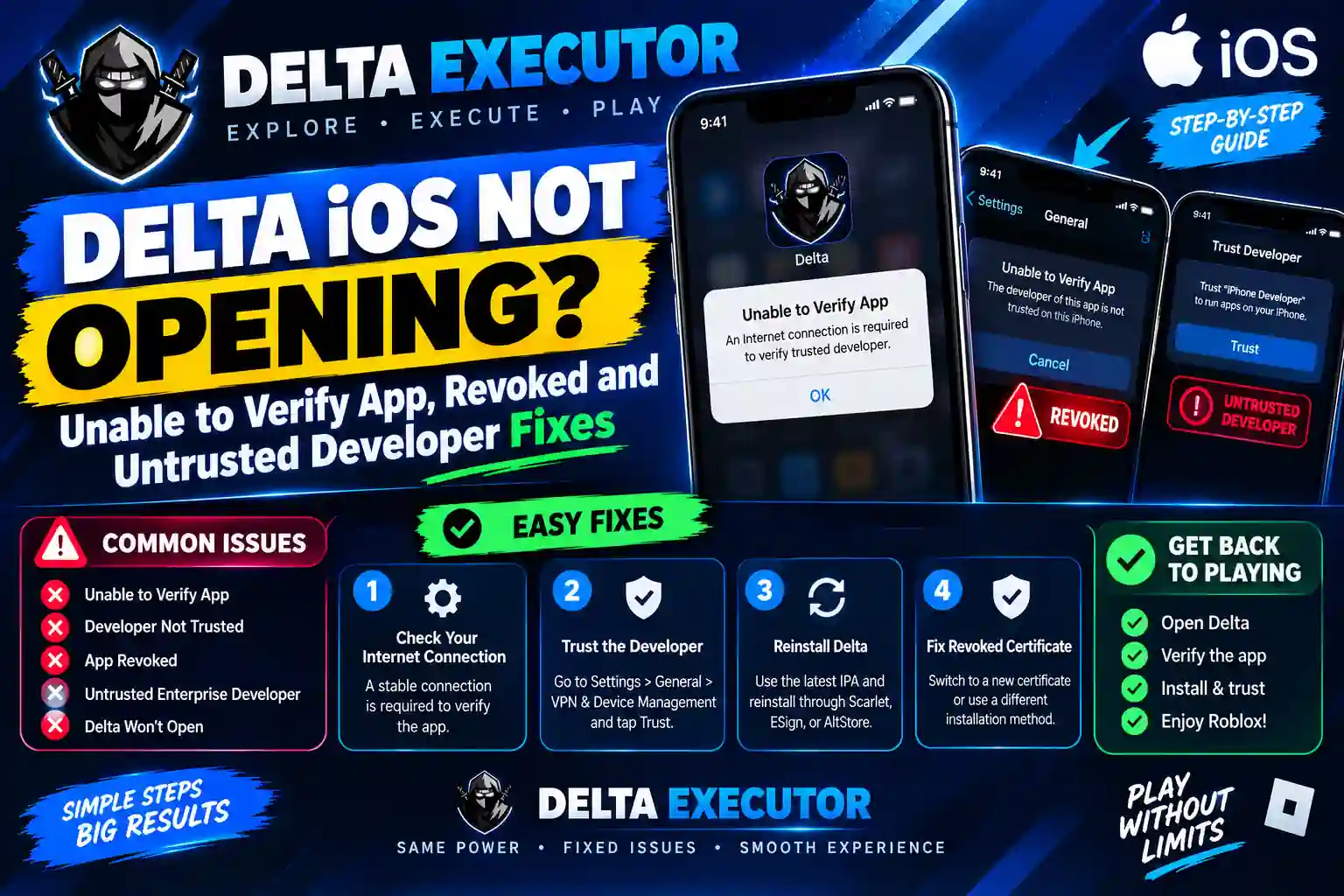
Delta Executor iOS is not opening on your device and you have no idea why. You tap the icon, a popup fires, and the app refuses to launch. This guide covers every error behind that moment: Unable to Verify App, Untrusted Enterprise Developer, App Not Available, certificate revoked, and plain crashes with no message at all. Each section gives you one clear fix path so you spend your time playing Roblox, not debugging Apple certificates.
Most Delta iOS errors come down to three root causes: the developer certificate has not been trusted yet, the certificate was revoked by Apple, or the app cannot reach Apple’s verification server. The fastest fix is Settings > General > VPN & Device Management, tap the Delta profile, then tap Trust. If the profile is missing entirely, delete the app and reinstall a fresh IPA from the official Delta Executor site.
Why iOS Shows These Errors in the First Place
Apple locks down every app that runs on iOS. Each app must carry a valid developer certificate signed by Apple’s own infrastructure. When you tap a sideloaded app like Delta Executor, iOS checks that certificate before it lets a single line of code run.
Delta Executor does not come from the App Store. It ships as an IPA file signed with an enterprise or developer certificate. That certificate is the only thing standing between the app icon and the app actually opening. Any time that certificate is missing, expired, revoked, or not yet trusted on your device, iOS throws an error and blocks the launch.
This is not a sign that Delta is broken. It is Apple’s code signing system doing exactly what it was designed to do. Once you fix the certificate situation, the app launches normally.
Apple issues certificates to registered developers so iOS can confirm an app comes from a known, accountable source. Enterprise certificates let companies distribute apps privately outside the App Store. Sideloaded apps like Delta rely on these certificates. When Apple revokes one, every device running apps signed with it gets the revoked error instantly, no matter how long the app was working before.
Understanding this one concept makes every fix in this guide make sense. You are not fixing a bug inside Delta Executor. You are fixing the trust relationship between your iPhone and the certificate that Delta is signed with.
All Delta iOS Error Types Explained
iOS throws several different error messages depending on what went wrong. They look different but they all block the app from opening. Here is what each one actually means before you try to fix it.
Untrusted Enterprise Developer
This is the most common error and the easiest to fix. It means Delta is freshly installed and you have never trusted its developer profile on this specific device. iOS requires a one-time manual trust step for every enterprise-signed app. No trust step, no launch.
Unable to Verify App
This error means iOS tried to check the certificate with Apple’s servers and could not complete the check. The full popup reads: “Unable to Verify App. An internet connection is required to verify the trust of the developer of Delta Executor.” This is almost always a network problem, either on your side or on Apple’s server side, not a problem with the app itself.
App Not Available
This means the developer profile has been revoked by Apple. The certificate that Delta was signed with no longer exists as far as Apple is concerned. You cannot trust a revoked certificate. You need a new IPA signed with a new certificate.
Revoked Certificate (Profile Gone)
When you open VPN & Device Management and the Delta profile is not listed at all, the certificate was revoked. Apple pulled it from their servers and iOS quietly deleted the profile from your device. The app stays on your home screen but it will never open again with that certificate.
Crash With No Message
The app taps, the splash screen flickers, and then you are back at the home screen with no popup. This is most common after an iOS update and on iOS 17 and later. Developer Mode being off is the most frequent cause.
Before you try any fix, go to Settings > General > VPN & Device Management and check whether Delta’s developer profile is listed. If it is there, the certificate is still valid and you just need to trust it. If it is gone, the certificate was revoked and you need a reinstall. This single check tells you which path to take.
Fix: Untrusted Enterprise Developer Error
This is a one-time setup step that iOS requires for every app installed outside the App Store. You only do this once per installation. If you reinstall Delta, you do the trust step again with the new IPA.
- Open the Settings app on your iPhone or iPad.
- Tap General and scroll down to find VPN & Device Management. On older iOS versions this is called Profiles & Device Management.
- Under the Enterprise App section, locate the Delta Executor developer entry. It will show the developer name associated with the certificate.
- Tap that developer entry. You will see the app listed underneath it.
- Tap the blue Trust button. A confirmation sheet appears asking you to confirm trust for all apps from this developer.
- Tap Trust again to confirm. The button changes to a green Verified label.
- Go back to your home screen and open Delta Executor. It should launch immediately.
If the Trust button is greyed out or does not appear, your device may have a Mobile Device Management profile from a school or employer that blocks installing unsigned apps. In that case, the restriction is enforced at the MDM level and cannot be bypassed on that device.
iOS updates sometimes reset the trust state for sideloaded apps. If Delta was working before your update and now shows the untrusted error, just run through the six trust steps above again. The profile is still there, it just needs re-verification after the system update.
Fix: Unable to Verify App Error
This error means iOS could not reach Apple’s certificate verification endpoint, which is a service called ppq.apple.com. Every time you launch a newly trusted sideloaded app for the first time, iOS pings that server to confirm the certificate is valid. If the ping fails, you get this error.
Check Your Internet Connection First
The fix is almost always network related. Work through these steps in order.
- Make sure your iPhone is connected to Wi-Fi or has mobile data. Open Safari and load any page to confirm the connection works.
- If you are on Wi-Fi, move closer to the router or switch to mobile data and try launching Delta again.
- Toggle Airplane Mode on and off. This forces your network stack to reconnect and often clears a stuck connection state.
- If you use a VPN, turn it off before launching Delta. VPN routing can block Apple’s certificate check servers.
- Restart your iPhone. A full power-off and power-on clears cached network states.
- After the restart, connect to Wi-Fi first, wait 30 seconds, then try launching Delta.
When the Problem Is on Apple’s Side
Sometimes ppq.apple.com itself has an outage. This happened in 2026 and affected every device running sideloaded apps globally at the same time. When this happens, no local fix helps because the problem is Apple’s server, not your device.
Check Apple’s System Status page to see if any developer services show a yellow or red indicator. If Apple’s services are degraded, wait for them to restore and then try again. There is nothing you can do on your end during a server-side outage.
Turn on Airplane Mode, then launch Delta. The app will fail to verify but dismiss the error. Turn Airplane Mode off, wait ten seconds, then try opening Delta again. On some devices this sequence succeeds because iOS uses a cached verification result from the earlier attempt once it has a real connection.
Fix: Revoked Certificate
A revoked certificate means Apple cancelled the signing certificate used to build the version of Delta you have installed. This happens when Apple sends a takedown to the enterprise account that signed the IPA. You cannot un-revoke a certificate. The only fix is to install a new version of Delta that is signed with a new certificate.
How to Confirm the Certificate Is Revoked
Go to Settings > General > VPN & Device Management. If you do not see any Delta-related entry under Enterprise App, the certificate is revoked and iOS has already removed the profile. Confirm by looking for the app name itself. If it is gone from that list, proceed with the reinstall below.
Clean Reinstall Steps
- Press and hold the Delta Executor icon on your home screen. Tap Remove App, then Delete App. This removes the old IPA and its revoked certificate data.
- Restart your iPhone to clear any cached certificate state.
- Visit deltaexecutions.com on your iPhone browser and download the latest IPA. Only use the official site. Third-party mirrors often distribute outdated or tampered files.
- Install the new IPA using your chosen method: direct install link, AltStore, or a signing service.
- Go to Settings > General > VPN & Device Management and trust the new developer profile.
- Open Delta. If it launches, you are done. If not, check that the new profile shows Verified in green.
Enterprise certificates used by sideloaded apps get revoked regularly. Apple actively monitors and removes certificates linked to app distribution outside the App Store. Most Delta updates come with a freshly signed certificate specifically because the previous one was revoked. Checking the official site for the latest version is the best long-term habit.
Fix: App Not Available Error
The App Not Available error is a variation of the revoked certificate state. iOS shows this message when the app itself exists on your device but the signing profile behind it is no longer recognized. The result is identical: the app will not open.
This error also appears when you restore a device from a backup and the app data carries over but the certificate profile does not. Backup restores do not transfer enterprise trust relationships.
Steps to Fix App Not Available
- Delete Delta Executor completely from your device. Do not keep the app data if prompted, since the old profile data causes problems on reinstall.
- Go to Settings > General > VPN & Device Management and check whether any Delta-related profile remains. If one does, tap it and tap Remove Management.
- Restart your device.
- Download a fresh IPA from deltaexecutions.com and install it clean.
- Trust the new developer profile as described in the Untrusted Developer section above.
Fix: Delta Crashes With No Error Message
A silent crash means the app process starts, tries to run, and terminates before iOS can display anything useful. This feels different from the popup errors because there is no message to act on. The causes are different too.
Enable Developer Mode (iOS 16 and Later)
From iOS 16 onward, Apple requires Developer Mode to be enabled for apps installed outside the App Store to run without restrictions. If Developer Mode is off, sideloaded apps can install but they crash silently on launch.
- Open Settings and tap Privacy & Security. Scroll to the very bottom of that page.
- Tap Developer Mode. Toggle it on.
- iOS prompts you to restart. Tap Restart. After the restart, iOS asks one more time whether you want to enable Developer Mode. Tap Turn On.
- Return to your home screen and launch Delta. The silent crash should be gone.
Other Causes of Silent Crashes
If Developer Mode is already on and Delta still crashes silently, work through these checks.
- Storage space: if your device has less than 500 MB of free storage, apps can crash on startup. Go to Settings > General > iPhone Storage and check your free space. Delete what you do not need.
- RAM pressure: close all background apps by double-tapping the Home button or swiping up from the bottom, then swiping each app away. Then launch Delta with no other apps running.
- Outdated IPA: if your Delta IPA is older than the current Roblox version, the executor layer may fail to initialize and crash. Download the latest IPA from the official site.
- Corrupted install: delete and reinstall from scratch. A partial download can produce an IPA that installs but crashes immediately.
iOS 18 tightened app launch restrictions further. If you updated to iOS 18 and Delta stopped working, turning on Developer Mode and then deleting and reinstalling the latest IPA is the standard fix sequence. Several users report that reinstalling on iOS 18 without enabling Developer Mode first still results in a silent crash even after the install succeeds.
iOS Update Broke Delta: What to Do
iOS updates break Delta in predictable ways. They do not change the app itself. They change how iOS handles the certificate trust state, Developer Mode, and app entitlements that Delta relies on. Here is what to check after every iOS update.
Step-by-Step Recovery After an iOS Update
- Check Developer Mode first. Go to Settings > Privacy & Security > Developer Mode. iOS updates occasionally reset this to off. Toggle it back on if needed and restart when prompted.
- Open VPN & Device Management. Look for the Delta profile. If it is still listed, tap it and re-verify. Some updates clear the verified state without removing the profile.
- If the profile is missing, delete Delta and reinstall the latest IPA from deltaexecutions.com.
- After reinstalling, complete the trust step in VPN & Device Management.
- Launch Delta on a stable Wi-Fi connection so the first-launch certificate verification completes without interruption.
Also check the Delta Executor news section on the official site after any major iOS update. When Apple releases a new iOS version, the Delta team typically pushes an updated IPA within days to restore compatibility. Running an older IPA against a new iOS version causes mismatches that no amount of trust-step repeating will fix.
| iOS Version | Known Impact on Delta | Primary Fix |
|---|---|---|
| iOS 16.x | Developer Mode requirement introduced. Silent crashes on first install. | Enable Developer Mode in Privacy & Security. |
| iOS 17.x | Trust state reset after minor updates. Occasional profile disappearance. | Re-trust profile in VPN & Device Management. Reinstall if profile missing. |
| iOS 18.x | Stricter launch entitlement checks. Silent crashes if Developer Mode is off. | Enable Developer Mode, delete, reinstall latest IPA. |
| iOS 18.2+ | Some enterprise profiles invalidated without a revoke event. | Reinstall latest IPA, re-trust new profile. |
VPN and Device Management: The Key Settings Screen
Most Delta iOS errors resolve inside one settings screen. Knowing what each item on that screen means saves you from guessing.
How to Find It
Settings > General > VPN & Device Management. On iOS 15 and earlier, the same screen is at Settings > General > Profiles & Device Management.
What You See There
The screen has two sections. The top section shows VPN configurations. The lower section, labeled Enterprise App, lists every developer profile for apps installed outside the App Store. Delta’s profile appears here after installation.
Reading the Profile Status
- No entry at all: the certificate was revoked or the app was never installed. Reinstall is required.
- Entry with no Trust button: you have already trusted this profile. It should work. If Delta still fails, the issue is something else, such as Developer Mode or a corrupt install.
- Entry with a blue Trust button: you have not trusted this developer yet. Tap Trust and then Trust again in the confirmation sheet.
- Entry with a red Revoked label: Apple has revoked the certificate. Delete Delta and install a new IPA with a different certificate.
If you have installed Delta more than once from different sources, you may see multiple developer entries. Each one corresponds to a different signing certificate. Trust only the one that matches your current install. Trusting an old, revoked entry does nothing for the current app.
Using AltStore to Avoid Certificate Revokes
AltStore is a third-party app store that signs IPAs with your own Apple ID developer certificate instead of an enterprise certificate. Because the certificate is tied to your personal Apple account, Apple cannot revoke it the way it revokes enterprise certificates used by app distributors.
The Trade-Off
A free Apple ID certificate expires after seven days. AltStore must refresh it before it expires, which requires your computer running AltServer to be on the same Wi-Fi network as your iPhone at least once every seven days. If the refresh misses the window, Delta stops opening until you refresh manually.
How to Refresh a 7-Day Certificate
- Connect your iPhone to the same Wi-Fi network as the computer running AltServer.
- Open AltStore on your iPhone.
- Tap My Apps at the bottom of the screen.
- Tap Refresh All in the top-right corner. AltStore contacts AltServer on your computer and resigns all installed apps with a fresh certificate.
- After the refresh completes, open Settings > General > VPN & Device Management and re-trust the refreshed Delta profile.
- Launch Delta normally.
For a deeper look at how to set up Delta for the first time on iOS or troubleshoot other install issues, see the Delta Executor iOS install guide on deltaexecutions.com.
Direct install from the official Delta site uses an enterprise certificate. Easier to set up but more likely to get revoked. AltStore uses your personal certificate. More setup work but far less likely to be revoked by Apple since it is tied to your own Apple ID rather than a third-party enterprise account. Both methods are valid depending on how often you want to deal with reinstalls.
Delta iOS Error Quick Reference
Use this table to identify your error and jump to the right fix without reading every section.
| Error Message | Root Cause | Profile in VPN & Dev. Mgmt? | Fix |
|---|---|---|---|
| Untrusted Enterprise Developer | Developer profile not yet trusted on this device | Yes, with Trust button | Tap the profile and tap Trust |
| Unable to Verify App | ppq.apple.com unreachable due to network or server issue | Yes, already trusted | Fix Wi-Fi, disable VPN, check Apple System Status |
| App Not Available | Certificate revoked by Apple | No, profile missing | Delete app, reinstall latest IPA from official site |
| Silent crash, no message | Developer Mode off (iOS 16 and later) or outdated IPA | Yes, showing Verified | Enable Developer Mode, update to latest IPA |
| Profile shows Revoked in red | Enterprise certificate terminated by Apple | Yes, labeled Revoked | Delete app, download fresh IPA from official site |
| App crashes after iOS update | Trust state or Developer Mode reset by iOS update | Maybe, depends on update | Re-check Developer Mode and re-trust profile |
| AltStore app expired | 7-day personal certificate not refreshed in time | Yes, expired | Open AltStore, tap Refresh All, re-trust |
Frequently Asked Questions
Why does Delta Executor keep saying Untrusted Enterprise Developer every time I update?
Each new IPA comes signed with a developer certificate. When you install a new version, iOS treats it as a fresh install from an unverified developer, even if you trusted a previous version. You must go to Settings > General > VPN & Device Management and trust the new certificate after every reinstall or update.
How do I fix Delta iOS if the developer profile is completely missing from Settings?
A missing profile means the certificate was revoked by Apple. There is no way to restore a revoked certificate. Delete Delta Executor from your device, download the latest IPA from deltaexecutions.com, install it, and then trust the new developer profile in VPN & Device Management.
Why does Delta crash without showing any error message on iOS 17 or iOS 18?
Silent crashes on iOS 16 and later are almost always caused by Developer Mode being turned off. Go to Settings > Privacy & Security > Developer Mode, enable it, and restart your device. After the restart, confirm you want to enable Developer Mode when iOS asks. Then try launching Delta again.
Can I fix the Unable to Verify App error without an internet connection?
No. iOS must contact Apple’s ppq.apple.com verification server to confirm a developer certificate is trusted. This check requires an active internet connection. Without it, iOS cannot complete verification and the app will not open. Connect to Wi-Fi or enable mobile data, then try again.
Does turning on Airplane Mode fix the Unable to Verify error?
Sometimes. Enabling Airplane Mode, tapping the app so iOS attempts and fails the verification, then disabling Airplane Mode and retrying can work on some iOS versions. The device uses a cached partial verification state from the first attempt once it gets a real connection. It is worth trying before a full reinstall.
How often does Delta’s iOS certificate get revoked?
Enterprise certificates used to sign sideloaded apps get revoked regularly, sometimes weekly. Apple actively removes enterprise certificates tied to app distribution outside the App Store. The Delta team releases new signed IPAs after each revoke. Checking deltaexecutions.com regularly and keeping the latest version installed minimizes downtime.
Will using AltStore stop Delta from getting revoked on iOS?
AltStore signs Delta with your personal Apple ID certificate instead of an enterprise certificate. Apple cannot revoke your personal developer certificate the way it revokes third-party enterprise ones. The trade-off is that personal certificates expire every seven days and must be refreshed using AltServer on your computer. If you do not refresh in time, the app stops opening until you do.
Why did Delta stop working after I updated to a new iOS version?
iOS updates reset Developer Mode and sometimes clear the trust state for sideloaded apps. After any iOS update, check Developer Mode in Settings > Privacy & Security and check your Delta profile in VPN & Device Management. Re-enable Developer Mode if it is off and re-trust the profile if it shows an unverified state. If the profile is missing, reinstall the latest IPA.
What is VPN and Device Management and why is it important for Delta?
VPN & Device Management is the Settings screen where iOS stores developer certificates for apps installed outside the App Store. When you install Delta, its signing certificate appears here. You must manually tap Trust on that certificate before iOS allows the app to run. It is the central place to check when Delta shows any certificate-related error.
I see multiple Delta profiles in Device Management. Which one do I trust?
Trust only the profile that matches your most recent install. Open each profile and check the associated app. The one that lists your current Delta Executor version is the right one. Old profiles from previous installs may still appear. You can remove them by tapping the profile and choosing Remove Management, but do not remove the active one.
Does Delta Executor iOS work on iPads as well as iPhones?
Yes. The same IPA and the same fix steps apply to both iPhone and iPad. The settings path is identical on iPadOS: Settings > General > VPN & Device Management. Developer Mode is available on iPadOS 16 and later under Settings > Privacy & Security, same as iPhone.
What should I do if none of these fixes work?
If you have tried every fix in this guide and Delta still will not open, the most likely cause is an incompatibility between your iOS version and the current IPA build. Check deltaexecutions.com for any announcement about known issues with your iOS version. The Delta team posts updates when a specific iOS version requires a different IPA. You can also try installing via AltStore rather than a direct link, which sometimes resolves compatibility issues that a direct install does not.
Bottom Line
Every Delta iOS error has a fix. The Untrusted Developer error takes 30 seconds to clear in Settings. The Unable to Verify error almost always goes away once you fix your connection or wait for Apple’s servers to recover. A revoked certificate requires a fresh install but that takes under five minutes from the official Delta Executor site. And if Delta crashes silently after an iOS update, enabling Developer Mode in Privacy & Security is the fix nine times out of ten.
Bookmark this page for future reference. iOS updates reset trust states regularly and certificate revokes happen without warning. Having the exact steps ready saves you significant time every time it happens.




2 Comments