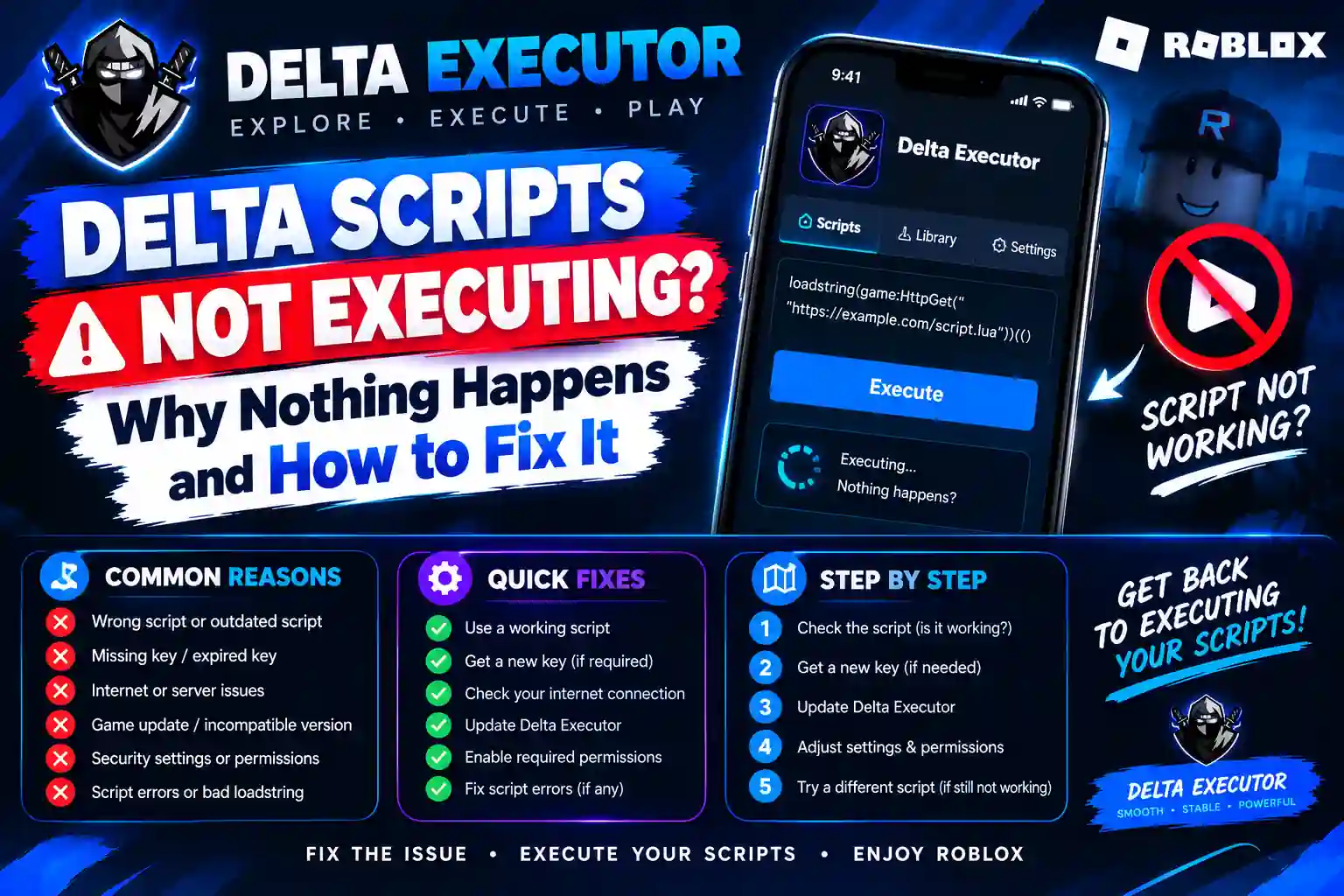
Delta Scripts Not Executing? Why Nothing Happens and How to Fix It
You pressed Execute, Delta confirmed injection, and absolutely nothing happened inside the game. No menu, no speed change, no auto-farm. Just silence. This guide covers every single reason Delta Executor scripts stop working, in plain language, with exact step-by-step fixes for each one — on Android, iOS, and PC emulator.
Paste print("test") into the Delta script tab and press Execute. Then check the Console tab. If you see the word “test” appear, injection is working and the problem is your specific script. If the console is completely blank, injection never completed. Those two outcomes lead to completely different fixes — all covered below.
Diagnose the Problem in 60 Seconds
Before you reinstall anything or try random fixes, run this one test. It separates every “script not executing” situation into one of two clear categories, and knowing which one you are dealing with saves you from wasting 20 minutes on the wrong fix.
- Open Delta Executor and make sure your key is active. Join any Roblox game and wait for it to fully load. Then inject Delta and wait for the confirmation indicator.
- Go to the Script tab inside Delta. Clear whatever is there. Type or paste exactly this one line:
print("test") - Press Execute. Then immediately switch to the Console tab inside Delta.
- If you see the word “test” printed in the console, injection is working perfectly. Your problem is with the specific script you are trying to run, not with Delta itself. Jump to Section 4 or Section 5.
- If the console shows a red error line, injection worked but the Lua environment has a problem. Go to Section 5.
- If the console is completely blank with zero output, injection never actually completed. Go to Section 2 or Section 3.
Most guides skip this step and send everyone straight to reinstalling Delta. That wastes your time when the real problem is a broken script you downloaded from an unreliable source. The one-line print test tells you in 10 seconds whether Delta is the problem or the script is the problem.
Also check this before moving on. Did you actually see a green or blue confirmation that injection succeeded? On Android, the floating Delta icon changes color when injection completes. On iOS, a brief notification appears. If you never saw that confirmation, Delta never attached to Roblox. The injection step is the most commonly skipped part of the whole process.
Fix 1: Injection Did Not Actually Complete
The most common reason a Delta script does nothing is silent injection failure. Delta may show an “injecting” animation or even a success message without ever properly attaching to the Roblox process. When that happens, pressing Execute sends your Lua code nowhere and nothing happens in the game.
This occurs because Roblox uses a different memory layout during its loading screen compared to inside a running game. If you trigger injection while the game is still loading, Delta targets the wrong memory state and the attachment fails silently. The app looks like it worked. It did not.
The Correct Injection Order Every Time
- Open Roblox first and join a game. Wait until your character is standing inside the game world. The loading screen ending is not enough. Your avatar must be fully spawned and moving.
- Use your phone’s app switcher to bring Delta to the foreground without closing Roblox. Both apps must stay running at the same time.
- Tap the inject button inside Delta. Wait and watch for the visual confirmation. Do not skip to Execute until you see it.
- Only after the confirmation appears, paste your script into the Script tab and press Execute.
- Switch back to Roblox and give the script two to three seconds to take effect. Large GUI scripts take longer to appear than simple loops.
Android’s battery saver kills background apps to save power. If Roblox goes to the background for more than 30 seconds on an aggressive device, the OS may pause it before you can switch back. Go to Settings, then Battery, then App Optimization. Set both Roblox and Delta Executor to Unrestricted so the system leaves both apps running.
If Injection Keeps Failing After the Correct Order
Try these steps in sequence. Force-close both apps completely by swiping them out of Recent Apps, then open Roblox first and Delta second. Restart your phone entirely to clear memory conflicts from background apps. On Android, check that Delta has Files and Media permission granted under Settings, Apps, Delta Executor, Permissions. Without that permission, Delta cannot read the files it needs during injection.
Fix 2: Your Delta Build Is Outdated After a Roblox Update
This is the most common cause of scripts suddenly stopping after a Roblox update. Roblox pushes client updates frequently — sometimes multiple times a week on mobile. Each update can change the internal memory addresses that Delta uses to inject Lua code into the running process.
When those addresses change, Delta’s injection targets locations that no longer exist. From your side, the app opens fine and may even say “injected,” but the Lua execution layer never connected. Scripts run and produce no output because the environment they are targeting is gone.
There is a period after every major Roblox update when no Delta build can inject successfully. This window lasts from a few hours to two days. During this time, no fix on your end will work because the problem is a compatibility gap between the current Roblox client and the Delta build available. Check deltaexecutions.com for update announcements and wait for the new build to release.
How to Check and Update Your Delta Build
- Open your phone’s browser and visit deltaexecutions.com. The homepage shows the current version number and release date.
- Open Delta Executor and find the version number inside the Settings or About section. Compare it to the one on the site.
- If your version is older, download the new APK on Android or the new IPA on iOS from the official site. Do not install on top of the old version. Uninstall first, clear the app data, then install fresh.
- After installing, generate a new key. Old keys often stop working after a version change because key validation is tied to specific build identifiers.
- Run the one-line print test from Section 1 to confirm the new build is working before trying any complex scripts.
Error Code 280 and the Roblox Upgrade Error
Error 280 appears when Roblox detects a version mismatch between the client Delta is attaching to and the live server version. The Roblox Upgrade Error on iOS appears when the signed IPA was built against an older Roblox API. The fix for both is identical: update Delta to the current build and also make sure Roblox itself is fully updated from the App Store or Google Play.
Fix 3: You Are Running the Script in the Wrong Game
This trips up a huge number of beginners and almost no guide explains it properly. There are two fundamentally different types of Roblox scripts. Using the wrong type in the wrong place produces exactly the symptom you are experiencing: execution appears to complete, Delta shows no error, and nothing happens in the game.
Universal Scripts vs Game-Specific Scripts
Universal scripts modify standard Roblox character properties that exist in every game — things like WalkSpeed, JumpPower, and basic physics. Because they only reference engine-level values, they work in any game regardless of which one you join. These are the best scripts to use when testing whether Delta is working.
Game-specific scripts reference internal objects, values, and functions that only exist inside one particular Roblox game. A Blox Fruits auto-farm script looks for item names, boss spawn timers, and XP tables that are unique to Blox Fruits. Run it in any other game and the script executes, finds none of those objects, and does nothing. No error. Complete silence.
Open the script and look at the first 20 lines. Game-specific scripts almost always reference a particular game name, call game.PlaceId and compare it to a hardcoded number, or require a specific GUI library that only that game provides. If you see those patterns and you are not in that exact game, the script will silently do nothing.
Outdated Game-Specific Scripts
Even in the correct game, a script can produce no output if the game itself updated after the script was written. Game developers push updates that rename internal objects, change GUI structures, or move values from client-side to server-side. A script written against the old structure finds nothing when it runs against the new one. Always check the script upload date. For popular games like Blox Fruits that update multiple times per week, a script more than two weeks old has a real chance of being broken. Use Delta’s built-in Script Hub or check deltaexecutions.com for verified working scripts organized by game.
Fix 4: The Script Itself Has Lua Errors
Not every script you find online is well written or even functional. Some are uploaded to farming sites purely to push users through ad-link systems. Others were working scripts that were never updated after Roblox changed its Luau API. When Delta executes broken Lua code, the execution stops at the first error. From your side, it looks like nothing happened.
Common Lua Error Messages and What They Mean
| Error Message | What It Means | Fix |
|---|---|---|
| attempt to index nil | Script references a game object that does not exist in this game or was removed in an update | Use the script in the correct game or find an updated version |
| attempt to call nil | Script calls a function that does not exist in Delta’s Lua environment or the current game API | Script was written for a different executor or older Roblox version. Find a newer one. |
| script timeout | Script ran too long without yielding and hit Roblox’s execution timeout | Find a version that uses proper task.wait() calls instead of deprecated wait() |
| unexpected symbol | Lua syntax error — missing bracket, parenthesis, or quote mark | Script has a typo or was corrupted when copied. Re-copy from the original source. |
| stack overflow | Script has infinite recursion with no exit condition | The script is poorly written. Find a different one. |
| Console completely blank | Injection did not complete. Script never reached the Lua environment. | Go back to Section 2 and fix injection first |
Testing With a Known-Good Script
When the console shows errors, the fastest way to confirm whether the problem is the script or the executor is to run something from Delta’s built-in Script Hub. The hub contains scripts the Delta team verifies against the current Roblox build. If a hub script works and your downloaded script does not, the problem is entirely with the downloaded script. Nothing about Delta needs to change.
Fix 5: Your Key Is Expired or Invalid
Delta Executor’s free tier uses a 24-hour key system. Each key is tied to a specific build version and a specific time window. When the key expires, Delta’s execution features lock. What makes this confusing is that Delta may still appear to accept scripts and show an executing state without actually running anything, because the execution layer requires a valid key to process code.
How to Tell if the Key Is the Problem
Open Delta. If the key input screen appears on launch, your key has expired. But sometimes Delta does not show the screen even when the key is stale. Check the key section inside Delta for the expiry timestamp. If more than 24 hours have passed since you generated it, generate a new one immediately. Also get a new key any time you update Delta to a new build, since build updates invalidate previously generated keys even if they have not reached the 24-hour mark.
How to Get a Fresh Key Without Problems
- Open Delta and tap Get Key on the key input screen.
- The link opens an ad-link provider page. You will see a countdown timer and a Continue button. Close any pop-up ads that appear and tap Continue when the timer finishes.
- Important: disable your VPN and any ad blocker before this step. Both can prevent the key page from loading or block the key from being generated at the final step.
- Copy the key from the final page. In newer Delta builds, the app reads it from your clipboard automatically. In older builds, paste it manually into the input field.
- Run the one-line print test to confirm execution is now unlocked before trying anything complex.
| Key Problem | Most Likely Cause | Fix |
|---|---|---|
| Invalid key error | Key expired, wrong build version, or extra whitespace when pasting | Generate a new key. Check for leading or trailing spaces before pasting. |
| Checkpoint never loads | VPN or ad blocker blocking the key provider page | Disable VPN and ad blocker. Try in a private browser tab. |
| Page loops, never gives key | Link provider changed their flow after a Delta update | Check the Delta Discord for the current working key link. |
| Key accepted but still locked | App cache conflict after a version change | Force-close Delta, clear app cache in Android settings, reopen, re-enter key. |
Android-Specific Fixes
Android is the easier platform to run Delta on, but it has its own set of problems that cause scripts to silently fail. Most come from Android’s security model and power management system rather than from Delta or Roblox themselves.
Android System WebView Is Out of Date
Delta’s user interface runs inside Android’s WebView component. When WebView is on a very old version, the interface breaks in subtle ways. The script tab may look normal but clicking Execute does nothing, or the console fails to show output even when injection worked. Open the Google Play Store, search for Android System WebView, and update it. Restart your phone after the update and test again.
Play Protect Interfering With Execution
Even after you install Delta past a Play Protect warning, Google Play Protect can continue monitoring the APK in the background and interfere with certain API calls Delta needs to attach to the Roblox process. Go to the Play Store, tap your profile icon, open Play Protect, and temporarily disable Scan apps with Play Protect. Test your script. If it works now, Play Protect was the issue.
Device RAM and Memory Pressure
Running Roblox and Delta simultaneously on a device with less than 3 GB of available RAM creates memory pressure. Android responds by throttling background processes or reducing Delta’s injection thread priority. The result is that injection appears to complete but the Lua runtime launches in a degraded state. Before injecting, close every background app. Swipe away everything from Recent Apps except Roblox and Delta.
Wrong APK Version for Your Android Version
Delta releases different APK builds targeting different Android API levels. An APK built for Android 12 and above may not fully function on Android 9 or 10. Check the download page at deltaexecutions.com for the minimum Android version listed for each build. If your device is below that requirement, look for an older compatible build or use an Android emulator on PC where the OS version is controllable.
iOS-Specific Fixes
iOS has a stricter app execution environment than Android. Apple limits background process access, requires apps to be signed with developer credentials, and expires sideloaded apps on a rolling 7-day cycle. These factors create a unique set of silent failures that do not occur on Android at all.
The 7-Day App Expiry
Free Apple Developer accounts allow sideloaded apps to run for exactly 7 days. After that, the app expires. A side effect is that Delta can appear to open and even show the interface, but its injection features enter a locked state. Scripts appear to run but produce no output because the execution layer is not active. If it has been more than 7 days since you re-signed the IPA through AltStore or Sideloadly, that is your problem. Re-sign it. The process takes about 2 minutes once your setup is established. For a full walkthrough, see our Delta Executor iOS update guide.
Trust Profile Not Established or Revoked
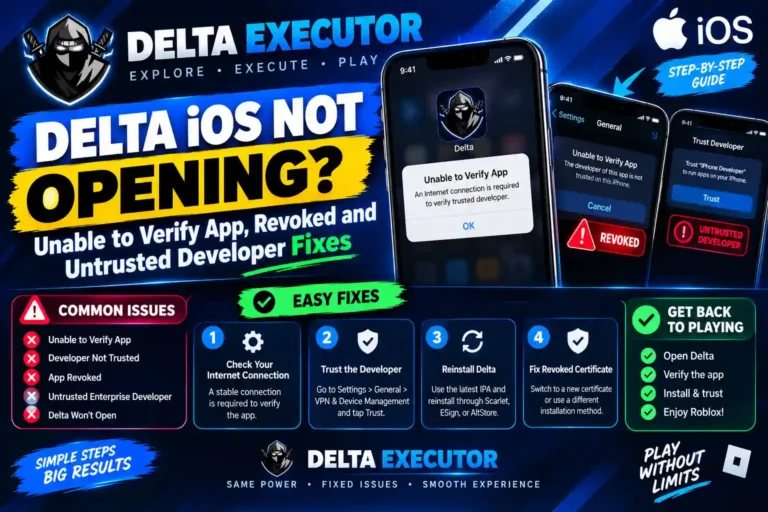
After installing the signed IPA, iOS requires you to manually trust the developer profile before the app can run properly. If you skipped this step, or if Apple revoked the profile, Delta opens but its core execution features do not initialize. Go to iOS Settings, General, VPN and Device Management. Find the profile associated with the Apple ID you used for signing and tap Trust. If the profile is missing or shows revoked, re-sign using a different Apple ID.
iOS Error Codes 40021 and 40000
These codes indicate a network-level block stopping Delta from communicating with its key validation server. They appear most often on school or workplace Wi-Fi networks that block unknown domains. Switch to mobile data, disable any VPN, and try again. If the errors disappear on a different network, the original connection is blocking Delta’s server and execution cannot proceed until that block is removed.
Auto-Inject Timing on iOS
Unlike Android, where a button manually triggers injection, iOS builds of Delta inject automatically when you switch from the Delta app to Roblox. This means the injection timing depends entirely on when you make that switch. Always make sure Roblox is fully loaded inside a game before switching to Delta and then back to Roblox to trigger injection. Switching apps while Roblox is still on the loading screen triggers injection at the wrong moment, which produces a failed or partial injection. Scripts appear to execute with no visible effect.
How to Use the Delta Console Tab to Find Any Error
The Console tab is the most underused feature in Delta Executor. Most beginners ignore it completely, then post asking why their script does not work. Almost every script failure leaves a diagnostic message there that tells you exactly what went wrong and on which line.
What to Look For
After running a script that appears to do nothing, switch to the Console tab before doing anything else. Red text means a Lua runtime error. The format is always the same: a colon-separated path showing the script name, the line number, and a description of the error. For example, Script:47: attempt to index nil value 'FruitInventory' tells you that line 47 tried to access an object called FruitInventory that does not exist in this game or version of the game.
White or grey text means print output from your script. If you ran the one-line print test and see white text with your test message, injection is fully working. The total absence of any text after the print test is the clearest possible sign that injection failed completely.
Finding the Broken Line Faster
If your complex script produces errors in the console, try removing the bottom half of the script and running what remains. If it runs cleanly, the error is in the bottom half. Add back a quarter and run again. Continue halving until you find the exact block causing the problem. For most users, finding a newer version of the script from a community repository like ScriptBlox is faster than debugging someone else’s Lua code line by line.
Quick Reference: Every Symptom and Its Fix
| Symptom | Most Likely Cause | Fix |
|---|---|---|
| Nothing happens, console blank | Injection did not complete | Follow correct order: game loaded first, then inject, then execute |
| Nothing after a Roblox update | Delta build is outdated | Update to latest build from deltaexecutions.com |
| Console shows attempt to index nil | Script targets wrong game or outdated game objects | Use script in its intended game or find an updated version |
| Execute button unresponsive | Key expired or Android WebView outdated | Generate new key; update Android System WebView from Play Store |
| Script runs once then stops | Loop relies on deprecated wait() or has no error recovery | Find newer version using task.wait(); check console for loop error |
| Works on Android but not iOS | IPA expired (7-day limit) or trust profile issue | Re-sign IPA; verify trust profile under iOS Settings, VPN and Device Management |
| Delta crashes after inject | Script too large, syntax errors, or memory pressure on device | Close background apps; test with a small script under 200 lines first |
| Error 280 | Roblox client version mismatch with Delta build | Update both Roblox and Delta to current versions |
| iOS error 40021 or 40000 | Network blocking Delta’s key validation server | Switch to mobile data; disable VPN; try different Wi-Fi network |
| Script runs silently with no effect | Game-specific script running in the wrong game | Join the correct game the script was built for |
| GUI appears then disappears instantly | Script uses a GUI protection function Delta’s current build does not support | Check if current Delta build supports the specific Lua function used |
How to Prevent Script Execution Failures
Most delta executor script not executing problems are preventable. Users who have the fewest issues follow a consistent routine before every session. Here is what that looks like.
Before Every Session
Check deltaexecutions.com for update announcements. If Roblox updated in the last 48 hours and a new Delta build has not yet released, wait. Trying to force execution during the patched window wastes your time completely. Confirm your key is still valid before joining a game. Generate a fresh one if you are unsure of the timestamp. Restart your phone. A cold start clears memory conflicts, stale network connections, and background interference. This single step eliminates a surprising number of injection failures.
When Choosing Scripts
Use Delta’s built-in Script Hub as your primary source, especially for popular games. Hub scripts are tested against the current Delta build and current game versions. When you use external scripts from repositories like ScriptBlox or V3rmillion, always check the upload date and read user comments before running. A script three or more months old with no recent activity has a good chance of being broken. Never run heavily obfuscated scripts from unverified Telegram groups or Discord servers. The risk is not just a broken script — it is malware designed to steal your Roblox session token.
For iOS Users Specifically
Set a weekly reminder to re-sign your Delta IPA through AltStore or Sideloadly. The 7-day expiry produces exactly the silent execution failure described in this guide and it sneaks up on regular users who forget to track it. Re-signing takes about 2 minutes. If you use Delta every day, an annual Apple Developer account at $99 per year removes this completely by extending signing validity to 365 days. See the full process in our Delta iOS update guide.
Frequently Asked Questions
Why does Delta say injected but nothing happens in the game?
This is almost always a false injection confirmation. The most common causes are injecting before the game finished loading, an outdated Delta build after a Roblox update, or an expired key past the 24-hour window. Run the one-line print test by pasting print("test") and checking the console tab. A blank console means injection never completed. Follow the injection order in Section 2: join the game fully, then inject, then execute.
How do I know if the problem is Delta or the script?
Test them separately. Run a script from Delta’s built-in Script Hub for your game. If that script works and produces a visible effect, Delta is completely fine and the problem is with your specific downloaded script. If the hub script also does nothing, the problem is with Delta’s injection or build version. This separation step cuts troubleshooting time in half.
Why does my Blox Fruits script work but another script does nothing?
The second script is most likely a game-specific script running in the wrong game. Game-specific scripts reference internal objects that only exist in one particular Roblox experience. If the script was built for Blox Fruits but you are in Adopt Me, it executes without errors and produces no effect because all the object references it relies on simply do not exist in that game. Confirm which game the script was built for and join that exact game.
Does Delta stop working after every Roblox update?
Not after every update, but after major Roblox client patches, yes. Roblox updates frequently change internal memory offsets and API structures. When those change, Delta’s injection targets addresses that no longer exist and injection fails. The Delta team typically releases a patched build within hours to two days of a major Roblox update. Minor Roblox patches that do not touch injection-relevant structures usually require no Delta update at all.
Why does my script run once and then stop automatically?
Scripts that run once and stop usually have a loop that terminates because of a Lua error on the second iteration, or they use the deprecated wait() function instead of the current task.wait() that Roblox now prefers. Check the console tab after the script stops. You will typically see an error line that appears after the first successful pass. Find a newer version of the script that uses current Roblox Luau syntax.
Why does Delta work on Android but not on my iPhone?
iOS uses a completely different installation and execution model. Delta on iOS requires sideloading through AltStore or Sideloadly, and the installed app expires every 7 days on a free Apple Developer account. If more than 7 days have passed since you signed the IPA, the app enters an expired state where it opens but cannot execute scripts. Re-sign it and verify the developer trust profile under iOS Settings, General, VPN and Device Management. Android users do not face this limitation because APK sideloads do not expire.
Where is the safest place to find scripts that work with Delta?
Start with Delta’s own built-in Script Hub, which the development team curates against the current build and game versions. For external scripts, use repositories with public rating systems and visible upload dates — ScriptBlox and V3rmillion are the most established. Always check the upload date. A script more than two to three months old for a frequently updated game like Blox Fruits is likely broken against current game structures. Never run scripts that ask for your Roblox login token or cookie under any circumstances.
Can I run Delta executor scripts for free?
Yes. Delta Executor is free and supports full Lua script execution on the free tier. The only requirement is completing the key checkpoint once every 24 hours to unlock execution. The paid keyless version removes that daily step but is otherwise the same executor. All script types — universal scripts, game-specific scripts, and hub scripts — work on the free version.
Bottom Line: Why Delta Scripts Stop Executing and How to Fix It
When Delta Executor scripts stop executing, it almost always comes down to three things: injection did not complete because the order was wrong, the Delta build is behind a Roblox update, or the script itself is broken or running in the wrong game. Run the one-line print test first. That single step tells you in 10 seconds whether the problem is in your injection stack or in the script, and it cuts your troubleshooting time in half.
After every Roblox update, check deltaexecutions.com for a new Delta build before assuming anything else is wrong. The team posts update status notices every time a Roblox patch affects injection compatibility. For iOS users, keep your re-signing schedule consistent so the 7-day expiry never catches you off guard.
For first-time setup and a full injection walkthrough, see our Delta Executor beginner tutorial. For iOS-specific installation help, see the Delta Executor for iOS guide.
Sources and References
- Roblox Corporation. Roblox Terms of Use. Roblox Official Help Center.
- ScriptBlox. Run Your First Script: Beginner Guide. ScriptBlox Documentation.
- Delta Executor official site — deltaexecutions.com
- Delta Executor Tutorial — Beginner Mobile Setup Guide
- Delta Executor for iOS — iOS Installation Guide


3 Comments