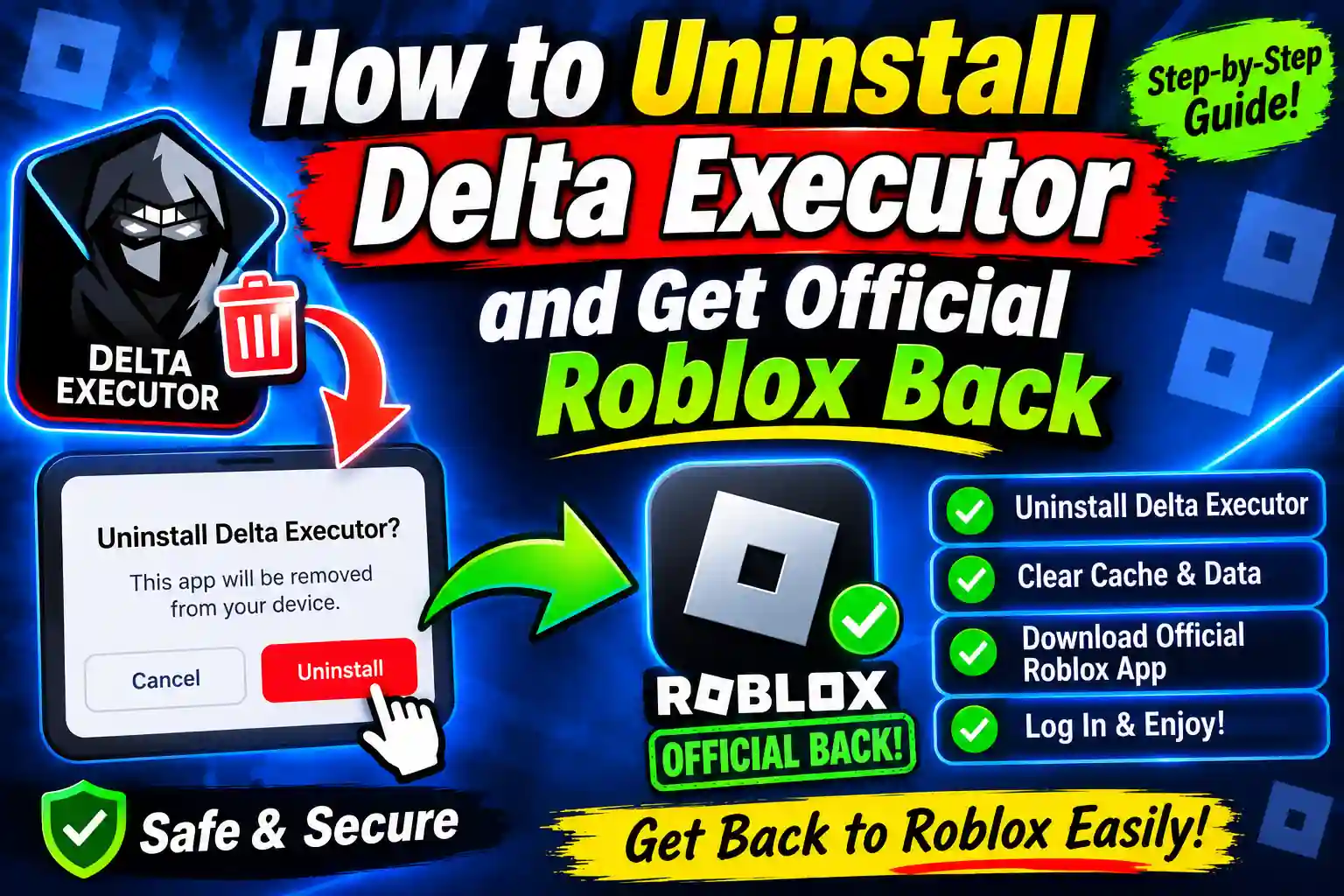
How to Uninstall Delta Executor and Get Official Roblox Back
Sometimes you need a clean break. Maybe you want to play Roblox without any executor presence on your device, maybe a parent asked you to remove it, maybe you want to pass the device along, or maybe you just want a fresh Roblox install because things have been glitchy. Whatever the reason, uninstalling Delta Executor properly is more than just deleting the app icon. Residual files, cache folders, and background processes stay on your device unless you clean them up on purpose. This guide walks through the full uninstall on Android, iOS, Windows, and Mac, then shows you how to reinstall official Roblox so it works like you never touched an executor.
Why People Uninstall Delta Executor
People remove Delta for different reasons. None of them are wrong. Understanding why you are doing it helps you decide how deep to clean afterward.
Returning to clean Roblox
You want to play without the risk of accidental script execution, random Error 268 kicks, or anti-cheat flags on your main account.
Device sharing
A sibling, friend, or child uses the same device and should not have access to scripting tools.
Parent or guardian request
Someone asked you to remove it. Removing cleanly is the easiest way to show you honored the request.
Account recovery
You got Error 267 or 268 repeatedly and want to prove to Roblox that your device is clean before appealing.
Competitive play
You compete in games like Rivals or Phantom Forces and want zero chance of a client-side flag ruining a ranked session.
Selling the device
You are passing the phone or PC along and want nothing executor-related on it.
Storage cleanup
Delta plus its cache can take up 500MB or more. Removing it reclaims space.
Troubleshooting
Some bugs only resolve after a full Delta removal and reinstall. Even if you plan to come back, a clean slate helps.
What Uninstalling Actually Removes
Deleting the Delta app icon only removes the main app bundle. Delta also writes several things to your device during normal use. A proper uninstall addresses all of them.
App bundle
This is the main Delta executable, the thing you tap or click. Standard uninstall removes it.
Cache folder
Delta caches scripts you ran, GUI state, hub resources, and sometimes attached process signatures. This folder lives in app-specific storage and is not removed by all platforms when you uninstall. On Android, it survives standard uninstall sometimes.
Script history
Any scripts you pasted into Delta’s editor are stored locally. These stay in cache folders along with saved snippets.
Key files
If you used Delta’s key system, the key values and timestamps live in local preferences until the keys expire.
Background processes
If Delta was running when you uninstalled, its processes may linger in memory until you reboot the device.
Firewall rules
On Windows, if you added Delta to Firewall exceptions or antivirus whitelists, those rules stay until you remove them manually.
Browser downloads
Delta installers you downloaded (APK files, DMG files, installer EXEs) stay in Downloads folders unless deleted.
None of what Delta removes touches your Roblox account. Your account, inventory, friends list, Robux balance, and game progress all live on Roblox servers. Uninstalling Delta on your device does nothing to any of that.
Before You Start
Two minutes of prep saves you from losing work.
- Save any scripts you wrote yourself. If you built custom scripts inside Delta’s editor, copy them to a note on your phone, a Google Doc, or a text file somewhere safe. Scripts in Delta vanish with the uninstall.
- Note which Delta version you have. If you plan to reinstall later, you may want the same version. Our old versions archive keeps older builds available.
- Make sure Roblox is logged out. On every device you use. You will do a fresh login later.
- Close Delta completely. End every Delta process before uninstalling. On mobile, swipe it out of recents. On PC, use Task Manager or Activity Monitor.
- Reboot your device once. This clears Delta from memory and ensures no file is locked by a background process.
Uninstall Delta Executor on Android
Android (full clean uninstall)
5 min- Open Settings. Tap the gear icon from your app drawer.
- Go to Apps or Installed Apps. The exact label varies by phone brand.
- Find Delta Executor in the list. It may show up as “Delta,” “Delta Exec,” or similar.
- Tap it, then tap Uninstall. Confirm when prompted.
- Also check for related apps. Any app with “Delta Key,” “Script Hub,” “Key Bypasser,” or “Linkvertise Bypass” in the name belongs to the Delta ecosystem. Uninstall each.
- Clear the Downloads folder. Open Files or My Files, go to Downloads, delete any APK with “delta” in the name.
- Clear Android cache for storage. Settings > Storage > Cached Data > Clear. This nukes residual Delta files that survived the standard uninstall.
- Reboot your phone.
Android residual files
Some Android phones leave an empty “Delta” folder in internal storage even after uninstall. Open Files > Internal Storage and delete any folder named “Delta” or “Delta_Executor” or similar.
Uninstall Delta Executor on iOS
iOS (sideloaded apps need extra cleanup)
7 miniOS Delta is almost always sideloaded (through AltStore, Sideloadly, Esign, or TrollStore), so the uninstall has one extra step compared to App Store apps.
- Delete the Delta app icon. Tap and hold the icon on the home screen, Remove App, then Delete App.
- Open Settings > General > VPN & Device Management.
- Look for developer profiles. Sideloaded Delta uses developer certificates. You will see profiles named something generic like “Apple Development: email@example.com” or a company name.
- Delete each unknown profile by tapping it and choosing Remove Profile. Keep only Apple’s own profiles and anything from your workplace IT.
- Also delete your sideloader app if you only used it for Delta. AltStore, Sideloadly companion, Esign, or TrollStore. Remove from the home screen.
- Open Settings > Safari (or your browser) and clear history and website data. This removes any Delta-related tokens cached in the browser.
- Reboot the iPhone.
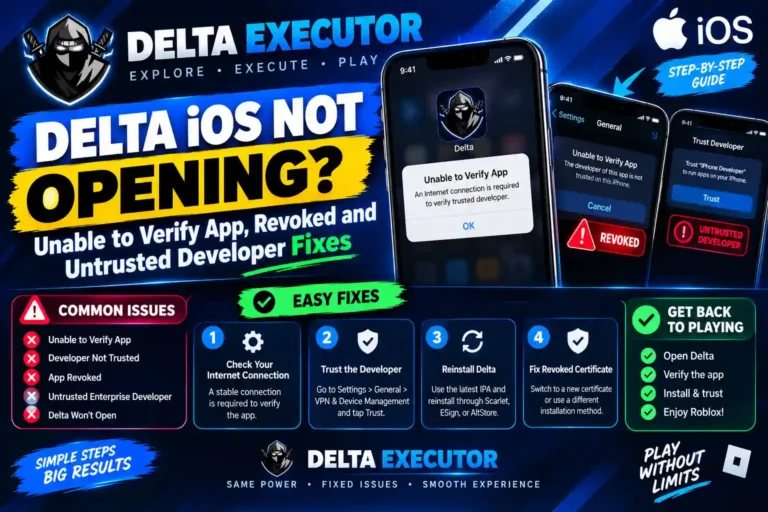
If Delta was pushed to you through a configuration profile (common in some older sideload methods), it may still show in Settings > General > VPN & Device Management. Remove it there as well. For related iOS cleanup, see our Delta iOS troubleshooting guide.
Uninstall Delta Executor on Windows
Windows 10 and Windows 11 (deep clean)
10 min- Close Delta and Roblox completely. Press Ctrl + Shift + Esc to open Task Manager. End every process starting with “Delta” or “Roblox.”
- Open Settings > Apps > Installed Apps.
- Search for Delta. Click the three dots next to the Delta entry, then Uninstall.
- Confirm the uninstall through the Delta uninstaller if one appears. Follow its prompts.
- Delete leftover folders. Open File Explorer and check these locations, deleting any Delta folders you find:
%localappdata%\Delta%appdata%\Delta%programdata%\DeltaC:\Program Files\DeltaC:\Program Files (x86)\Delta
- Clean the Downloads folder. Delete any Delta installer EXE or ZIP you downloaded.
- Remove Firewall exceptions. Open Windows Security > Firewall & network protection > Allow an app through firewall. Find Delta entries and uncheck or remove them.
- Remove antivirus exclusions. If you added Delta to Windows Defender exclusions or third-party antivirus allowlists, remove those entries so your scanner picks up any leftover file.
- Clean the Registry (optional, advanced users only). Press Win + R, type regedit, press Enter. Edit > Find > “Delta” and remove any Delta-related keys you find. Only do this if comfortable with Registry editing.
- Empty the Recycle Bin.
- Restart Windows.
Editing the Registry can break Windows if you remove the wrong key. Skip the Registry step unless you are comfortable with it. For most users, deleting the folders and firewall rules above is enough.
Uninstall Delta Executor on Mac
macOS (Big Sur, Monterey, Ventura, Sonoma, newer)
5 min- Quit Delta completely. Open Activity Monitor, filter for “Delta,” select each entry, press the X button to force quit.
- Open Finder, go to Applications.
- Drag Delta to the Trash.
- Delete support files. In Finder, press Command + Shift + G and visit each of these paths, deleting any Delta folders:
~/Library/Application Support/Delta~/Library/Caches/Deltaor similar bundle ID folder~/Library/Preferences/(look for Delta-related plist files)~/Library/Logs/(look for Delta logs)
- Empty the Trash.
- Check Downloads and delete any Delta DMG files.
- Restart your Mac.
For the broader Mac installation reference, see Delta for Mac.
Reinstall Official Roblox Cleanly
Once Delta is fully removed, do a fresh install of Roblox so there is no leftover modified data from executor sessions. This ensures your Roblox client starts in a factory-clean state.
Android
- Open Settings > Apps > Roblox > Uninstall.
- Delete the Roblox folder from internal storage (Files > Android > data > com.roblox.client, if present).
- Reboot the phone.
- Reinstall Roblox from Google Play (or VNG store if you are in Vietnam).
- Launch and sign in with your original account. All your inventory and friends are intact.
iOS
- Delete Roblox from the home screen.
- Reboot the iPhone.
- Reinstall Roblox from the App Store.
- Sign in.
Windows
- Settings > Apps > Installed Apps > Roblox > Uninstall.
- Delete
%localappdata%\Roblox. - Also delete
C:\Program Files (x86)\Roblox, if present. - Restart Windows.
- Download Roblox fresh from roblox.com or install from the Microsoft Store.
Mac
- Drag Roblox from Applications to Trash.
- Delete
~/Library/Caches/com.roblox.RobloxPlayer. - Delete
~/Library/Preferences/com.roblox.RobloxPlayer.plist. - Empty Trash and reboot.
- Download Roblox fresh from the Mac App Store or roblox.com.
Verify Your Device Is Clean
Three quick checks confirm that Delta and its traces are completely gone.
| Check | How to Verify | Expected Result |
|---|---|---|
| App list | Search installed apps for “Delta” | Nothing found |
| Storage | Browse Downloads, cache, and app data folders | No Delta folders or APK/EXE files |
| Processes | Task Manager (Windows), Activity Monitor (Mac), Running Services (Android) | No Delta or executor-related process |
| Firewall / antivirus | Review exception lists | No Delta entries |
| iOS profiles | Settings > General > VPN & Device Management | No unknown developer profiles |
| Roblox launch | Launch Roblox, play a game for 15 minutes | No Error 267 or 268 |
If every row returns the expected result, your device is clean. If you still see Delta-related items or Roblox throws Error 267 or 268, something was missed. Our Roblox error code reference helps diagnose remaining issues.
Reset Roblox Cache and Login Associations
If your Roblox account triggered Error 268 while Delta was in use, Roblox may have logged elevated client checks against your account. A clean Delta uninstall does not reset those server-side flags, but these steps help clear your side of the association.
- Sign out of Roblox on every device. This forces fresh session tokens on next login.
- Change your Roblox password. Not strictly necessary, but a password change invalidates all existing login tokens and signals a clean restart to Roblox systems.
- Clear Roblox cache on your main device. We covered the paths above during reinstall.
- Wait 24 hours before heavy gameplay. Some elevated-check windows last 24 hours after suspicious activity. Playing light games (not competitive FPS) during that window is safer.
- Sign in and play a low-risk game first. Something casual like Welcome to Bloxburg or Adopt Me. This builds a clean session history before you join games that have stricter anti-cheat.
If Uninstall Fails or Delta Keeps Coming Back
Delta sometimes resists a clean uninstall. Here is how to force removal when the normal flow does not work.
Android: “Can’t uninstall” error
Delta was installed via an admin profile. Open Settings > Security > Device Admin Apps and disable any entry you do not recognize. Then retry the uninstall.
iOS: App icon stuck on home screen
Reboot the iPhone. If still stuck, go to Settings > General > iPhone Storage, find the app, and tap Delete App from there.
Windows: Uninstaller crashes or fails
Download Revo Uninstaller or IObit Uninstaller (both free). Run them to force uninstall Delta, including its leftover files and Registry entries. These tools do what Windows cannot do on its own.
Mac: App won’t move to Trash
Make sure Delta is fully closed in Activity Monitor. If still stuck, boot into Safe Mode (hold Shift during startup), move Delta to Trash from there.
Delta icon reappears after uninstall
Something is reinstalling it. On Android, check that no file manager app is set to auto-install APKs from Downloads. On iOS, check that your sideloader is not refreshing Delta on a schedule. On Windows, check Task Scheduler for any Delta-related task.
Roblox still throws Error 268 after clean uninstall
Something else is triggering it, not Delta. See our dedicated detection guide and troubleshooting hub. Common other causes include antivirus real-time scanning, Discord overlay, and VPN use.
If You Want to Come Back Later
Nothing about uninstalling Delta burns a bridge. You can reinstall any time you want. Here is what to know before you do.
- Always download fresh. Grab the latest build from deltaexecutions.com. Never use an old APK or installer from a shady site. Fake Delta downloads often bundle malware.
- Reinstall on a separate device if you have an alt. Keep your main Roblox account on a Delta-free device for safety.
- Use subtle features on your main account. ESP over aimbot, silent aim over hard aim, walkspeed 20 over 50. Our is Delta safe guide covers staying under the radar.
- Start with keyless scripts. Avoid key bypass apps that trigger Error 267. Our keyless scripts guide covers the best options.
- Follow the official tutorial. If any step confuses you, our Delta tutorial walks through every detail.
- Check status before scripting. If Delta is temporarily detected, our status page keeps you informed.
The Bottom Line
Uninstalling Delta Executor properly means more than deleting the app icon. Remove the main app, clear app-specific storage, delete leftover folders in Downloads and Library paths, remove firewall and antivirus exceptions on PC, remove sideload profiles on iOS, and reboot your device to flush background processes. Then reinstall Roblox cleanly for a factory-fresh gaming experience.
Your Roblox account, inventory, friends, and Robux stay completely safe through the whole process because all that data lives on Roblox servers, not on your device. If you decide to come back to scripting, the latest Delta build is always on deltaexecutions.com. For now, enjoy a clean Roblox install.
Frequently Asked Questions
How do I uninstall Delta Executor completely?
On Android, go to Settings > Apps > Delta Executor > Uninstall. On iOS, delete the app icon and remove developer profiles from Settings > General > VPN & Device Management. On Windows, use Settings > Apps > Installed Apps > Delta > Uninstall, then delete leftover folders in %localappdata%, %appdata%, and Program Files. On Mac, drag Delta from Applications to Trash and clean out ~/Library/Application Support/Delta and related folders. Reboot after each platform’s uninstall to flush background processes.
Will uninstalling Delta affect my Roblox account?
No. Your Roblox account, inventory, friends, Robux, and game progress all live on Roblox servers, not on your device. Uninstalling Delta Executor removes only local app files. Your account stays exactly as it was. You can continue playing Roblox on the same account immediately after the uninstall.
Do I need to reinstall Roblox after removing Delta?
A clean Roblox reinstall is recommended but not strictly required. Roblox may have cached files that Delta modified or interacted with during attach. A reinstall ensures those caches are rebuilt fresh. If you had been seeing Error 267 or 268 before, reinstalling Roblox after removing Delta usually resolves them for good.
How do I remove Delta Executor on iPhone?
Delete the Delta app icon by tapping and holding it, then Remove App > Delete App. Next, open Settings > General > VPN & Device Management and remove any developer profile that signed Delta (sideloaded apps use these). If you installed Delta through AltStore or Sideloadly, delete that sideloader app too. Finally, reboot the iPhone to flush any lingering processes.
Why does Delta keep reinstalling itself?
On Android, a file manager app set to auto-install APKs from Downloads may be reinstalling Delta. Check your Downloads folder for leftover APKs and delete them. On iOS, your sideloader app (AltStore, Sideloadly) may be refreshing Delta on a schedule. Open the sideloader and remove Delta from its managed apps list. On Windows, check Task Scheduler for any task that references Delta and delete it.
Will Roblox detect that I used Delta?
Roblox does not permanently mark accounts for prior executor use once the executor is removed. Elevated client scans sometimes apply for up to 24 hours after suspicious activity. After that window, your account behaves identically to any clean account. Changing your password after the uninstall also helps invalidate any session tokens that were active during Delta use.
Can I reinstall Delta later if I change my mind?
Yes. Uninstalling Delta is fully reversible. You can reinstall any time by downloading the latest build from deltaexecutions.com. Keep in mind that older builds you downloaded before may now be out of date; always grab a fresh copy to avoid detection and bugs. If you want a specific older build for compatibility reasons, our old versions page keeps them archived.
Does uninstalling Delta remove the Error 268 kick?
In most cases yes, because Delta memory handles are a leading cause of Error 268. However, Error 268 can also fire from antivirus interference, overlays, VPN use, or corrupted Roblox files, so if the kick persists after a clean Delta removal, those other triggers are still active on your device. Reinstalling Roblox fresh and whitelisting it in your antivirus usually clears the rest.
References
- DeltaExecutions, Delta Executor Install and Uninstall Hub, deltaexecutions.com
- Google Android Support: Uninstall and Reinstall Apps
- Apple Support: Delete Apps on iPhone and iPad
- DeltaExecutions internal testing across Android, iOS, Windows, and Mac (recently updated)

One Comment