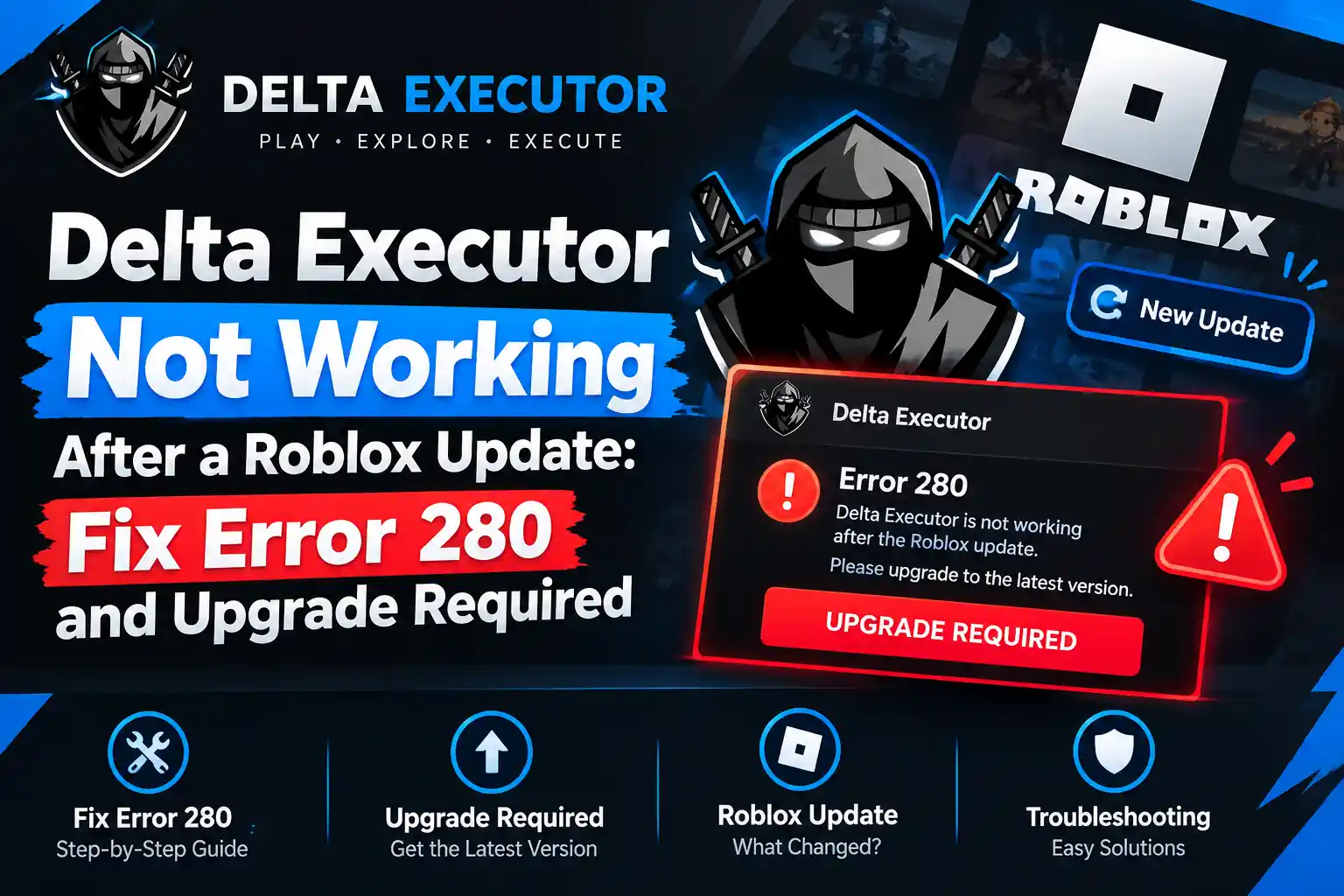
Delta Executor Not Working After a Roblox Update: Fix Error 280 and Upgrade Required
Delta Executor not working after a Roblox update is one of the most searched problems in the entire executor community. You open Delta, tap Inject, and nothing happens. Or you get the dreaded “Your version of Roblox may be out of date” message with Error Code 280 plastered across the screen. This guide covers every fix that actually works in 2026, in order of what solves the problem fastest.
Delta Executor stops working after a Roblox update because Roblox changes its internal client build and Delta needs a matching updated version to re-attach. The fix is almost always the same: update Delta to the latest version from deltaexecutions.com, clear the Roblox app cache, get a fresh key, and relaunch. The full step-by-step process is in the fix sections below.
Why Delta Executor Stops Working After a Roblox Update
Roblox pushes client updates on a schedule that does not care about third-party tools. When Roblox updates its internal build, the memory addresses, function hooks, and injection entry points that Delta uses all shift. Delta then cannot attach to the new Roblox process because it is still looking for the old addresses from the previous build.
This is not a bug in Delta. It is how every Lua executor works. The Delta development team monitors Roblox build releases and pushes a matching Delta update as fast as they can. During that window, which usually lasts anywhere from a few hours to two or three days, Delta will not inject scripts reliably regardless of what you do on your end.
The most common symptoms you will see during this window are:
- Delta opens but the Inject button does nothing when pressed
- Error Code 280 with the message “Your version of Roblox may be out of date”
- The “Upgrade Required” or “Please Update” message inside Delta itself
- Delta injects but scripts crash immediately or produce no output
- Delta crashes on launch without any error message
- Key system loops without completing even with a valid key
None of these errors mean your Roblox account is banned. Error 280 and the Upgrade Required message are technical version mismatches between the executor and the Roblox client. They carry zero risk to your account status by themselves.
What Is Roblox Error Code 280 and Why Does Delta Trigger It
Error Code 280 is a Roblox-side error that reads: “Your version of Roblox may be out of date. Please update Roblox and try again. (Error Code: 280)”
In the normal Roblox client without any executor involved, Error 280 means your installed Roblox version is older than what the game servers currently accept. Roblox servers check the client build version on every connection attempt. If the build number does not match the minimum required version, the server rejects the connection and returns Error 280.
When you use Delta Executor, this error shows up for a different reason. Delta modifies how Roblox launches and attaches. If Delta is running an outdated build that no longer matches the current Roblox client version, the modified launch process fails the server version check and returns Error 280 even if your Roblox app itself is fully updated.
This is why updating Roblox alone does not fix Error 280 when Delta is involved. You need both apps on their latest compatible versions at the same time.
No. Error 280 is a version mismatch error. It means the Roblox build on your device is older than what the server accepts, or that your executor is triggering a version conflict. It has nothing to do with moderation, account restrictions, or bans. You will not lose your account from seeing this error.
The “Upgrade Required” Error Inside Delta Executor
The Upgrade Required message appears inside Delta itself, separate from the Roblox Error 280 message. When you see it, Delta is telling you directly that its own version is too old to work with the current Roblox build on your device.
This message comes from Delta’s internal version check. Every time you open Delta, it checks whether its injector build is still compatible with the version of Roblox currently installed. If Roblox updated since your last Delta update, the check fails and Delta shows Upgrade Required before you even reach the injection screen.
The only fix for Upgrade Required is to update Delta Executor to the latest version. No amount of cache clearing, key refreshing, or reinstalling Roblox will resolve this error without a Delta update. The fix section below walks through exactly how to do this safely.
Fix 1: Update Delta Executor to the Latest Version
This resolves the majority of cases. If Delta released a compatible update after the Roblox change, installing it will get you back to injecting scripts within a few minutes.
On Android (Mobile)
- Long press the Delta Executor icon on your home screen and tap Uninstall. Do not use the in-app update button if it is broken or stuck.
- Open your browser and go to deltaexecutions.com to get the latest verified APK download link.
- Download the APK. When prompted, allow installation from unknown sources for your browser app under Settings then Security then Install Unknown Apps.
- Install the new Delta APK. Open it and complete the key process before attempting to inject.
- Launch Roblox separately and join a game. Then switch back to Delta and tap Inject.
On PC (Windows)
- Close Delta Executor completely from the system tray. Right-click the tray icon and select Exit if it appears there.
- Open Task Manager with Ctrl + Shift + Esc and end any Delta or Roblox processes still running in the background.
- Visit deltaexecutions.com and download the latest Windows release.
- Run the installer as Administrator. Right-click the setup file and choose Run as Administrator.
- Once installed, open Delta first and complete the key step. Then open Roblox and join a game before pressing Inject.
Only download Delta Executor from deltaexecutions.com. Dozens of fake sites distribute modified APK files that contain malware or keyloggers disguised as Delta updates. The official site is the only safe source.
Fix 2: Clear the Roblox App Cache
Outdated or corrupted Roblox cache files sometimes cause injection failures and Error 280 even after a Delta update. Clearing the cache forces Roblox to rebuild its local data from scratch, which often resolves conflicts that linger after a Roblox client update.
On Android
- Open your phone Settings and go to Apps or Application Manager.
- Find Roblox in the list and tap it.
- Tap Storage then Clear Cache. Do not tap Clear Data unless you want to log back in.
- Repeat the same steps for Delta Executor if a Cache option appears for it.
- Restart your phone completely before reopening either app.
On PC
- Press Win + R to open the Run dialog and type %localappdata% then press Enter.
- Find the Roblox folder and open it.
- Delete everything inside the Versions folder. These are cached client builds that can conflict with new Roblox versions.
- Also navigate to %temp% and delete any files or folders with Roblox in the name.
- Restart your PC and let Roblox rebuild its files on the next launch.
Fix 3: Get a Fresh Delta Key
Delta uses a key system that validates your session before allowing injection. Keys expire regularly and a Roblox or Delta update always invalidates any key that was generated before the update. If you are using a key you obtained days ago, it is almost certainly expired and causing injection failures even if Delta itself is on the correct version.
- Open Delta Executor and tap or click the Get Key button on the main screen.
- Complete the key process through the Linkvertise steps. Do not skip any checkpoint or use a key generator site. Those keys do not work and often contain malware.
- Copy the key exactly as it appears, including any dashes or special characters.
- Paste the key into the Delta key input field and tap Submit or Confirm.
- Wait for the green confirmation message before attempting to inject. If Delta shows a red error on the key, the key was entered incorrectly or has already expired. Repeat the process for a new one.
Always get a fresh key immediately after updating Delta. Keys generated on an old version of Delta often fail on the new version even if they have not technically expired yet. Get a new one every time you update the app.
Fix 4: Reinstall Both Roblox and Delta Executor
If updating Delta and clearing cache has not resolved the problem, a clean reinstall of both apps often does. This removes any corrupted installation files on either side that are causing the conflict.
On Android
- Uninstall Roblox completely from your device. Long press the icon and tap Uninstall.
- Uninstall Delta Executor the same way.
- Restart your phone to clear any residual processes from memory.
- Reinstall Roblox from the Google Play Store and open it once to complete the initial setup and log in.
- Download the latest Delta APK from deltaexecutions.com and install it. Get a fresh key and then attempt injection.
On PC
- Uninstall Roblox through Settings then Apps. Also manually delete the Roblox folder from %localappdata% if it remains after uninstalling.
- Uninstall Delta Executor and delete any remaining Delta folders from your Desktop or Documents.
- Restart your PC.
- Reinstall Roblox from roblox.com/download and log in once before using Delta.
- Download and install the latest Delta version from deltaexecutions.com. Run as Administrator. Get a new key before injecting.
Fix 5: Battery Optimization and App Permission Fixes (Android)
Android’s battery optimization system kills background apps aggressively on many devices, especially on Samsung, Xiaomi, Oppo, and Huawei phones. When Delta tries to inject into Roblox, Android sometimes terminates the Delta process mid-injection because it treats it as an idle background app. This causes the inject button to appear to work but produce no result.
- Go to Settings then Battery then Battery Optimization or App Battery Usage depending on your device.
- Find Delta Executor in the list and set it to Not Optimized or Unrestricted.
- Do the same for Roblox. Both apps need to run freely in the background without Android terminating them.
- On Samsung devices, also go to Settings then Apps then Delta Executor then Battery and set it to Unrestricted.
- On Xiaomi or Redmi devices, go to Security app then Battery Saver then choose Roblox and Delta and set both to No Restrictions.
While you are in the app settings, also check that Delta has been granted Overlay permission. Delta needs to draw over other apps to display its inject interface while Roblox is in the foreground. Without this permission, the inject UI disappears the moment Roblox becomes the active app.
Fix 6: PC-Specific Fixes for Delta Executor Not Working
Run Delta as Administrator
Delta needs elevated permissions to inject into another running process on Windows. Without Administrator rights, the injection silently fails. Right-click the Delta executable and select Run as Administrator every time you use it. To make this permanent, right-click the file, go to Properties then Compatibility, and check Run this program as an administrator.
Add Delta to Windows Defender Exclusions
Windows Defender and most third-party antivirus programs flag executor tools as potentially unwanted programs because of how they inject into other processes. Defender often deletes Delta files silently in the background without any notification, which makes Delta appear broken when it is actually just missing core files. Add the Delta Executor folder to your Defender exclusion list before installing.
- Open Windows Security from the Start menu.
- Go to Virus and Threat Protection then Manage Settings.
- Scroll down to Exclusions and click Add or Remove Exclusions.
- Click Add an Exclusion then Folder and select the Delta Executor installation folder.
- Reinstall Delta after adding the exclusion to ensure no files were previously deleted by Defender.
Check .NET Framework and Visual C++ Redistributables
Delta requires .NET Framework 4.8 or above and the Visual C++ 2015 to 2022 Redistributable package to run correctly on Windows. If either is missing or corrupted, Delta will crash on launch or fail to inject without any clear error message. Download and install both directly from Microsoft’s official pages if you suspect this is the issue.
Check Your Date and Time Settings
This sounds unrelated but it is a real cause of Error 280 on PC. Roblox servers validate session tokens that include a timestamp. If your system clock is significantly wrong, the token validation fails and Roblox returns Error 280. Go to Settings then Time and Language and enable Set time automatically to fix this.
Full Delta Executor Error Reference Table
Use this table to identify exactly what is causing your issue and jump straight to the right fix.
| Error | What It Means | Fix |
|---|---|---|
| Error Code 280 | Roblox client version mismatch. Delta or Roblox is outdated relative to the current server build. | Update Delta first, then update Roblox. Clear cache if the error persists after updating both. |
| Upgrade Required | Delta’s internal version check failed. Delta is too old for the current Roblox build. | Update Delta Executor to the latest version. No other fix will work until this is done. |
| Inject Button Does Nothing | Injection silently failing. Usually a battery optimization kill, a missing permission, or an outdated Delta build. | Disable battery optimization for both apps. Check overlay permission. Update Delta if it is behind the current Roblox build. |
| Script Crashes After Inject | Delta injected successfully but the script itself is incompatible with the current Roblox version or game update. | Try a different script. The executor is working but the script needs to be updated by its author. |
| Key System Loop | Key validation is failing repeatedly. Usually a key generated on an old Delta version or a connectivity issue during validation. | Get a completely fresh key from inside the current Delta version. Check your internet connection during the key process. |
| Delta Crashes on Launch | Missing dependencies on PC (NET Framework or Visual C++) or a corrupted APK on Android. | On PC, install NET Framework 4.8 and Visual C++ 2022 Redistributable. On Android, redownload the APK from the official site and reinstall. |
| App Not Installed Error | APK installation failed on Android. Usually caused by a conflicting old version still partially installed. | Uninstall any existing Delta version completely, restart your phone, then install the new APK fresh. |
| Delta Opens, Roblox Kicks Back to Lobby | Roblox detected an unusual process attachment and disconnected you. Rare but happens after certain Hyperion anti-cheat updates. | Wait for a Delta update that addresses the new Hyperion signature. There is no user-side workaround for this specific situation. |
How Long Does It Take for Delta to Update After a Roblox Patch
This depends on how significant the Roblox update was. Minor Roblox patches, the kind that fix small bugs or update assets, sometimes require no Delta update at all. Delta will keep working through those without any action on your part.
For major Roblox client updates that change the internal build version, the Delta team typically releases a compatible update within 12 to 48 hours. During high-traffic periods like major Roblox game launches or platform-wide updates, the window can stretch slightly longer.
The fastest way to know when a Delta update is available is to check the official Delta Discord server or follow the announcements on deltaexecutions.com. The team posts update notices there before most third-party sites pick up the news.
If a Delta update has not dropped yet for a recent Roblox patch, the most productive thing you can do is wait. Trying to force injection with an outdated Delta on an updated Roblox client will not work and risks creating additional conflicts in your app data. Check back after 24 hours and update Delta as soon as the new build is available.
Why Delta Executor Keeps Breaking With Every Roblox Update
Roblox uses Hyperion, a custom anti-cheat and client integrity system developed by Byfron Technologies, which Roblox acquired in 2022. Hyperion actively monitors the Roblox process for unauthorized attachments and memory modifications. Every time Roblox pushes a client update, Hyperion’s detection signatures and memory layout both change.
Delta has to reverse-engineer the new memory layout with each Roblox update to find the correct injection entry points again. This is not a one-time engineering problem. It is a continuous cat-and-mouse process that repeats with every Roblox release.
Understanding this explains why there is no permanent fix. The Roblox client will always keep updating, Hyperion will keep evolving, and Delta will always need to release a matching update in response. The best thing you can do as a user is keep Delta updated, know where to check for new releases, and expect a brief downtime window after every major Roblox patch.
For more background on how Delta works and what it can do, visit the Delta Executor homepage for the full feature breakdown and download information.
How to Prevent Delta Executor Errors Going Forward
You cannot prevent every Delta outage since they depend on Roblox’s update schedule. But you can reduce downtime and avoid the most common self-caused problems with a few habits.
- Always download Delta from deltaexecutions.com and nowhere else. Mirror sites distribute outdated or modified builds that cause errors the official version does not have.
- Get a new key every time you update Delta. Do not reuse keys across Delta versions.
- Keep battery optimization disabled for both Roblox and Delta permanently, not just when you are troubleshooting.
- Add the Delta folder to your antivirus exclusions list before installing each new version to prevent silent file deletion.
- Keep the Roblox app updated. Running an old Roblox version creates version mismatches on its own without any executor involvement.
- Follow the official Delta announcement channels so you know immediately when a compatible update drops after a Roblox patch.
Frequently Asked Questions
Does Error 280 mean my Roblox account is banned?
No. Error 280 is a technical version mismatch between the Roblox client build on your device and the version the servers currently accept. It is completely unrelated to account moderation, bans, or strikes. You will not lose your account from this error.
I updated Delta but still get Error 280. What now?
After updating Delta, also clear the Roblox app cache and get a fresh key. If the error persists after all three steps, Delta may still be releasing its compatible update for the specific Roblox build you have. Wait 12 to 24 hours and check for another Delta update before trying anything more drastic.
Why does the Inject button do nothing even after updating Delta?
The most common cause on Android is battery optimization killing the Delta process during injection. Go to Settings then Battery then Battery Optimization and set Delta Executor to Unrestricted or Not Optimized. Also check that Delta has Overlay permission granted under App Permissions. On PC, make sure you are running Delta as Administrator.
Do I need to uninstall Roblox to fix Error 280?
In most cases, no. Updating Delta and clearing the Roblox cache resolves Error 280 without uninstalling Roblox. A full reinstall of Roblox is only necessary if the error persists after updating Delta, clearing cache, and getting a fresh key.
My key keeps expiring or looping. What is happening?
Keys generated on an old Delta version typically fail on the new version even if they have not technically expired. Always get a completely fresh key after every Delta update. Also check your internet connection during the key process because a dropped connection mid-validation causes the system to loop back to the start.
Delta worked fine yesterday. Why did it suddenly stop working today?
Roblox almost certainly pushed a client update overnight. This is the single most common reason Delta stops working without any action on your part. Check for a new Delta version on deltaexecutions.com and install it.
Can I use a Delta key from yesterday on today’s version?
Keys do expire and Roblox or Delta updates typically invalidate existing keys. If you are getting key errors, do not try to reuse old keys. Go through the key process fresh inside the current version of Delta to get a valid one.
Is Delta Executor safe to download?
The official Delta Executor downloaded from deltaexecutions.com is the verified source. Third-party mirror sites frequently distribute modified builds. Always verify you are on the correct official site before downloading any version.
Why does Windows Defender keep deleting Delta Executor?
Windows Defender flags executor tools as potentially unwanted programs because of how they inject into running processes. This is a false positive in the context of Delta. Add the Delta Executor folder to your Defender exclusion list before installing to prevent files being silently deleted.
How do I know when a Delta update for a new Roblox build is available?
The fastest sources are the official Delta Discord server and deltaexecutions.com. Update announcements appear there before most community sites pick up the news. Bookmark the homepage and check it after any Roblox update that breaks Delta for you.
Bottom Line
Delta Executor not working after a Roblox update almost always comes down to a version mismatch. Update Delta from deltaexecutions.com, clear the Roblox cache, get a fresh key, and restart both apps. That three-step process resolves the problem in the vast majority of cases.
If those steps do not work, the Delta team is still releasing their compatible update for the new Roblox build. Check back in 12 to 24 hours and try again once a new Delta version is available. There is no permanent user-side fix for the post-update downtime window because the core issue is on the development side.
For the latest verified Delta download, full version history, and script guides, visit deltaexecutions.com.
Sources and References
- Roblox Error Code 280 official explanation — Roblox Support
- Hyperion anti-cheat system — Roblox Wiki: Hyperion
- Delta Executor official download and updates — deltaexecutions.com

13 Comments