How to Update Delta Executor on iPhone and iPad (Step-by-Step Guide)
Updating Delta Executor on iOS is not as straightforward as tapping an update button because the App Store does not list it. The process depends entirely on which method you used to install Delta originally. This guide walks through every update scenario: updating through Scarlet and ESign without a computer, refreshing through Sideloadly and AltStore with a computer, and what to do when a certificate gets revoked mid-update.
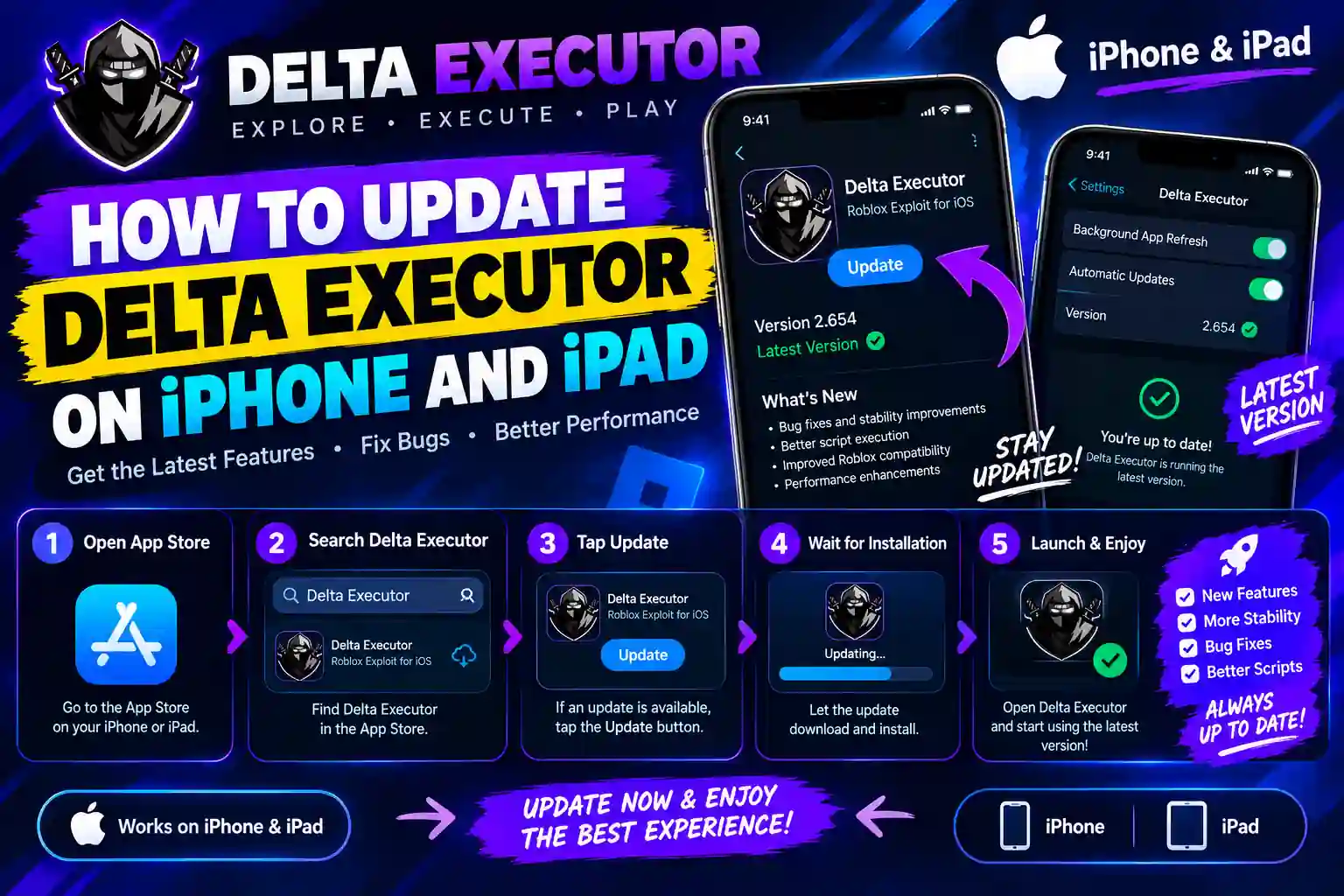
To update Delta Executor on iOS, download the latest IPA from deltaexecutions.com and reinstall it through the same method you used originally (Scarlet, ESign, Sideloadly, or AltStore). You do not need to uninstall the old version first. Trust the new certificate after installation and get a fresh key before injecting. The full process for each method is below.
Why Updating Delta Executor on iOS Matters
Delta Executor is tied to specific Roblox client builds. When Roblox updates its app, the memory structure Delta uses to inject changes. An outdated Delta version cannot inject into an updated Roblox client, which is why the inject button stops working after a Roblox update.
On iOS this matters even more than on Android because iOS installation already involves certificate signing. Running an outdated Delta version on iOS means dealing with two potential failure points at the same time: an expired certificate and an outdated injection layer. Staying updated eliminates the injection problem and keeps you focused only on the certificate management side.
There is also a security reason to update. Each Delta update includes patches to the anti-ban layer that reduce the chance of Roblox’s Hyperion system detecting the executor. Older injection builds use signatures that Hyperion has already catalogued. Current builds update those signatures with each release, which is the main technical protection Delta offers against account detection.
Delta Executor iOS does not update automatically. There is no in-app notification for new versions. You need to check deltaexecutions.com manually after any Roblox update and install the new IPA yourself. This is the same behavior as the Android version.
How to Check Your Current Delta Executor iOS Version
Before updating, confirm which version you currently have installed. This tells you whether an update is actually needed or if your installation is already current.
- Open Delta Executor on your iPhone or iPad.
- Look for a Settings or About section inside the app. The current version number is displayed there.
- Open Safari and go to deltaexecutions.com. Check the latest iOS version listed on the downloads page.
- Compare the two numbers. If your installed version matches the one on the site, you are already on the latest build and no update is needed. If the site shows a higher version number, update using the method below that matches how you installed Delta.
If Delta is crashing on launch and you cannot see the version number inside the app, assume an update is needed. Post-Roblox-update crashes almost always mean the installed Delta version is incompatible with the current Roblox build.
How to Update Delta Executor iOS via Scarlet (No Computer)
If you originally installed Delta through Scarlet, updating follows the same process as the initial installation. You do not need to delete the old version first unless Scarlet specifically prompts you to.
- Open Safari on your iPhone and go to deltaexecutions.com. Download the latest iOS IPA file. When Safari asks where to save it, choose Save to Files. The IPA lands in your Downloads folder inside the Files app.
- Open Scarlet on your iPhone. If Scarlet’s certificate is currently active and working, the interface will load normally.
- Tap the option to install an IPA from your device files. Navigate to the Files app and select the new Delta IPA from your Downloads folder.
- Scarlet will sign and install the updated version. This typically takes 20 to 40 seconds depending on connection speed.
- After installation completes, go to Settings then General then VPN and Device Management on your iPhone. Find the certificate for the new Delta install and tap Trust. You must do this even if you trusted a certificate for the previous version.
- Open Delta. Get a fresh key before attempting to inject, since keys from the previous version do not carry over to the updated build.
If Scarlet Shows a Greyed-Out Install Button
A greyed-out or unresponsive install button in Scarlet means its enterprise certificate has been revoked. You cannot complete the update through Scarlet until a new certificate becomes active. Switch to ESign if it has an active certificate, or use the Sideloadly method below which does not depend on enterprise certificates.
How to Update Delta Executor iOS via ESign (No Computer)
ESign users follow nearly the same process as Scarlet. The interface differs slightly but the steps are equivalent.
- Download the latest Delta Executor IPA from deltaexecutions.com in Safari. Save it to your Files app Downloads folder.
- Open ESign on your iPhone. Tap the Apps tab at the bottom of the screen.
- Tap the Import IPA option. Select the new Delta IPA file from your Downloads folder in the Files picker.
- ESign shows the app details with a Sign and Install button. Tap it. ESign signs the IPA using its active enterprise certificate. The process takes 20 to 45 seconds.
- After installation, trust the new developer certificate through Settings then General then VPN and Device Management.
- Open Delta and complete the key process before injecting. Always get a fresh key after any update.
Keep both Scarlet and ESign installed on your device. When one service’s certificate gets revoked, the other may still have an active one. Having both available means you almost always have a working no-computer update path ready without waiting for a single service to renew its certificate.
How to Update Delta Executor iOS via Sideloadly (Computer)
Sideloadly updates are the most stable because they use your personal Apple ID certificate rather than an enterprise certificate. The process is identical to the initial installation.
- Download the latest Delta Executor IPA from deltaexecutions.com to your Windows PC or Mac.
- Connect your iPhone to your computer using a Lightning or USB-C cable. Trust the connection on your iPhone if prompted.
- Open Sideloadly on your computer. Drag the new Delta IPA file into the Sideloadly window.
- Enter your Apple ID and password in the Sideloadly login fields. Click Start.
- Sideloadly will sign and install the updated Delta version over the existing installation. The process takes one to three minutes.
- After installation, trust the developer certificate on your iPhone through Settings then General then VPN and Device Management if prompted. With the same Apple ID you have used before, you may not need to re-trust.
- Open Delta and get a fresh key before injecting.
The 7-Day Refresh vs a Full Update
There are two distinct situations with Sideloadly on iOS. The first is refreshing an existing installation because the 7-day free Apple ID signing window has expired. In that case, drag the same IPA version you already have and re-sign it. The second is a full update to a new Delta version. In that case, drag the new IPA file. Both processes look identical in Sideloadly but the outcome differs: one refreshes the signature on the same version, the other installs the new version.
Always download the new IPA from the official site when a new Delta version releases rather than refreshing the same old IPA. Refreshing an outdated IPA extends its lifespan but does not bring the injection updates the new version contains.
How to Update Delta Executor iOS via AltStore (Computer)
AltStore users have a slightly more streamlined update path because AltServer on your computer handles automatic background refresh. However, installing a new version rather than just refreshing still requires a manual step.
- Download the latest Delta Executor IPA from deltaexecutions.com to your computer or directly to your iPhone via Safari.
- If the IPA is on your computer, airdrop it to your iPhone or transfer it to the Files app. If you downloaded it in Safari on your iPhone, it is already in your Downloads folder in Files.
- Make sure AltServer is running on your computer and your iPhone is connected to the same Wi-Fi network.
- Open AltStore on your iPhone. Tap My Apps at the bottom tab.
- Tap the plus button in the top left corner. Navigate to the new Delta IPA in your Files app and select it.
- AltStore will sign and install the updated version. After installation, AltServer will automatically refresh the signature going forward as long as it is running and your devices share Wi-Fi.
- Open Delta and get a fresh key before injecting.
What to Do After Every Delta Executor iOS Update
Three steps apply after every Delta update on iOS regardless of which installation method you used. Skipping any of them is the most common reason updates appear to fail when they have actually succeeded.
Step 1: Trust the New Certificate
After installing an updated Delta through Scarlet or ESign, a new enterprise certificate is associated with the installation. You must trust it manually. Go to Settings then General then VPN and Device Management, find the new certificate, and tap Trust. If you skip this, Delta will show an Untrusted Developer error every time you try to open it.
If you updated through Sideloadly or AltStore with the same Apple ID you always use, you may not need to re-trust because the certificate is tied to your account rather than to an enterprise provider. But if Sideloadly shows the app as installed and it still will not open, trust step is the first thing to check.
Step 2: Get a Fresh Key
Keys from a previous Delta version do not carry over to an updated version. After every update, open Delta and go through the key process from scratch. Do not try to paste a key you saved from before. The key system validates against the current Delta version and a key generated on an old version will fail on the new one.
Step 3: Verify the Version Number
After updating and completing the key process, check the version number inside Delta’s settings or about screen one more time. Confirm it matches the version listed on deltaexecutions.com. If it still shows the old version number, the update did not complete successfully and the process needs to be repeated.
What to Do When a Certificate Gets Revoked During an Update
One of the more frustrating situations is when you start an update through Scarlet or ESign and the enterprise certificate gets revoked partway through, leaving you with a broken installation. Here is how to handle this cleanly.
First, delete the partially installed or broken Delta app from your home screen. Long press it and choose Delete App. This clears any corrupted installation state.
Next, go to Settings then General then VPN and Device Management. Remove any certificates associated with the failed installation. Tap the certificate, then Remove Management or Delete Certificate depending on what your device shows.
Then choose a new installation path. If Scarlet’s certificate is revoked, check whether ESign has an active certificate. If both are revoked, switch to the Sideloadly method using your computer. Sideloadly with a personal Apple ID is not affected by enterprise certificate revocations.
For issues beyond certificate problems, see the full Delta Executor not working fix guide for injection troubleshooting after a successful update.
How Often Delta Executor iOS Receives Updates
Delta Executor updates on iOS follow the same schedule as the Android version. A new Delta build typically releases within 12 to 48 hours after a significant Roblox client update that breaks injection. Minor Roblox patches that do not affect the injection layer require no Delta update at all.
In practical terms, major Roblox updates happen every few weeks and occasionally more frequently during periods of rapid Roblox development. Each one that affects Delta’s injection layer triggers a new Delta release. Smaller Roblox updates that only change assets or game-side content typically pass without requiring any Delta update.
The fastest way to know when a new Delta iOS update is available is to check deltaexecutions.com after any Roblox update that breaks your current Delta installation. The homepage shows the latest available version immediately when a new build releases.
| Update Type | Delta Update Needed | Typical Wait Time |
|---|---|---|
| Major Roblox client build change | Yes | 12 to 48 hours after Roblox update |
| Minor Roblox asset or game update | Usually not | No wait needed |
| Certificate revocation (Scarlet or ESign) | No new Delta needed, new cert only | Hours to days depending on service |
| 7-day Apple ID signing expiry (Sideloadly) | No new Delta needed, re-sign only | Immediate when you reconnect to computer |
| Roblox Hyperion anti-cheat update | Yes, Delta patches its anti-ban layer | 12 to 72 hours after Hyperion change |
Troubleshooting Delta Executor iOS Update Problems
Delta Opens but Shows Old Version After Update
The update did not complete successfully. The old version is still running. Delete the current app, remove the associated certificate from Settings then General then VPN and Device Management, and start the installation process again with the new IPA.
Untrusted Developer Error After Updating
You skipped the certificate trust step. Go to Settings then General then VPN and Device Management and trust the certificate associated with the new Delta installation. This is required after every reinstallation through Scarlet or ESign.
Key Invalid After Updating
This is expected behavior. Keys do not transfer between Delta versions. Open Delta after updating and complete the key process from scratch to get a valid key for the new version.
Injection Still Fails After Updating Delta
If Delta updated successfully but injection still fails, Roblox may have pushed another update since the Delta release you installed. Check deltaexecutions.com to confirm you have the absolute latest build. If another Delta update is already available, install that one. If the site shows the same version you have, the Delta team is still preparing a response to the most recent Roblox change. Wait 12 to 24 hours and check again.
Scarlet or ESign Fails During Update
Enterprise certificate revocation is the most common cause. Switch to the other signing service or use Sideloadly. Both bypass the enterprise certificate dependency entirely.
Sideloadly Shows Installation Error
Disconnect and reconnect your iPhone. Make sure iTunes (Windows) or Finder (Mac) recognizes your device before using Sideloadly. If the error persists, try restarting both your iPhone and your computer before attempting the update again through Sideloadly.
Frequently Asked Questions
Do I need to uninstall Delta before updating on iOS?
No. Install the new IPA directly over the existing installation. All four update methods handle the overwrite automatically. Uninstalling first is unnecessary and loses no benefit. Only delete the old version if the update fails partway through and leaves a broken installation state.
Will updating Delta Executor on iOS delete my settings?
Updating typically preserves app data including any saved settings within Delta. However, you will always need a fresh key after updating since keys are version-specific and do not carry over between Delta builds.
How do I know when a new Delta iOS update is available?
Check deltaexecutions.com after any Roblox update that causes Delta to stop working. The homepage shows the latest available version number. There are no push notifications for new releases since Delta is not on the App Store.
Can I update Delta iOS without a computer using Scarlet or ESign?
Yes, when those services have an active enterprise certificate. Download the new IPA from the official site, open Scarlet or ESign, and install the new IPA the same way you installed the original version. If the certificate is currently revoked, use Sideloadly with your computer as a backup.
How often do I need to re-sign Delta with Sideloadly?
Every 7 days with a free Apple ID. Reconnect your iPhone to your computer, open Sideloadly, drag in the same IPA, and click Start. The re-signing process takes one to two minutes and restores full functionality for another 7 days.
Does updating Delta iOS fix injection failures after a Roblox update?
Yes, in most cases. Delta updates specifically address Roblox build changes that break injection. After updating Delta to the version built for the current Roblox client, injection should restore. If injection still fails after updating, either Delta has not yet released its response to the most recent Roblox change, or there is a separate iOS-specific issue described in the troubleshooting section above.
Is updating Delta Executor the same on iPhone and iPad?
Yes. The update process is identical on both devices. All installation methods including Scarlet, ESign, Sideloadly, and AltStore work the same way on iPhone and iPad running iOS or iPadOS 15 or above.
My Scarlet certificate got revoked right before I updated. What do I do?
Delete the broken Delta installation, remove the revoked certificate from Settings then General then VPN and Device Management, and switch to ESign or Sideloadly for the update. If ESign also has a revoked certificate, use Sideloadly on your computer. Sideloadly with a personal Apple ID is not affected by enterprise certificate revocations at all.
Bottom Line: How to Update Delta Executor on iOS
Updating Delta Executor on iOS means downloading the new IPA from deltaexecutions.com and reinstalling through whichever method you originally used. Scarlet and ESign handle it without a computer when their certificates are active. Sideloadly and AltStore handle it reliably with a computer regardless of enterprise certificate status.
After every update, trust the new certificate in Settings, get a fresh key, and verify the version number inside Delta. Those three steps are what most people miss when an update appears not to work.
For first-time iOS installation, see our full Delta iOS direct install guide. For injection failures that persist after updating, see the Delta Executor not working fix guide.
Sources and References
- Apple code signing and certificate management — Apple Developer: Code Signing
- Apple Developer Enterprise Program certificate policy — Apple Developer Enterprise Program
- Delta Executor official homepage — deltaexecutions.com



2 Comments