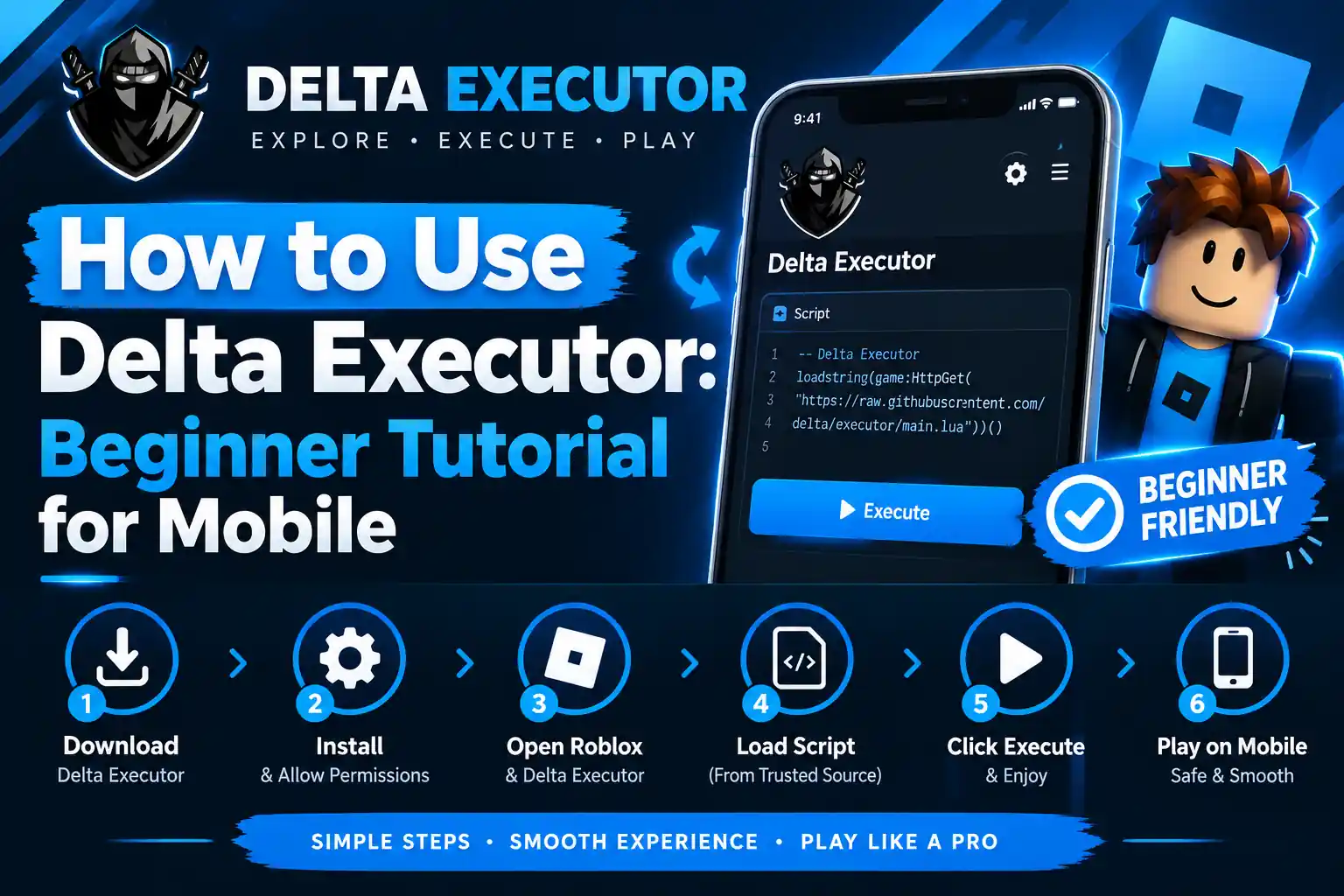
How to Use Delta Executor: Beginner Tutorial for Mobile
Delta Executor is one of the most widely used Lua script executors for Roblox on mobile. If you just downloaded it and have no idea what to do next, this guide walks you through everything: what the interface looks like, how the key system works, how to paste and run your first script, and what to watch out for. By the end, you will know exactly how to use Delta Executor on Android or iOS from scratch.
What Is Delta Executor?
Delta Executor is a third-party Lua script executor for Roblox. It sits outside the official Roblox app and lets you inject custom Lua code into a live Roblox game session. Once injected, that code runs inside the game environment and can automate actions, modify values, or add features that the game does not normally provide.
Most players use it to automate tedious tasks: farming resources in Blox Fruits, auto-collecting items in Grow a Garden, or running movement scripts in simulator games. Because you write or paste Lua code, the tool is technically flexible enough to do almost anything the Roblox Luau sandbox permits.
Delta is built primarily for mobile. That is the gap it fills. Most older executors only ran on Windows PC, but Delta targets Android and iOS directly, which is why it became popular so quickly in the mobile Roblox community. You can also run it on PC through Android emulators like BlueStacks or LDPlayer.
Delta Executor is not made by Roblox and is not endorsed by Roblox Corporation. Using it violates Roblox’s Terms of Service. Read the safety and risks section before you begin so you understand what you are getting into.
That said, Delta is the most actively maintained free mobile executor at the time of writing. The development team pushes updates whenever Roblox releases a new version that breaks compatibility, which is the main reason it stays popular over competitors that go weeks without patches.
For a broader overview of everything Delta Executor can do, see the Delta Executions homepage, which also keeps track of the latest release version.
How Delta Executor Works Under the Hood
Understanding the basic mechanism helps you troubleshoot problems later, so here is a plain-English explanation.
When you launch Roblox on your phone, it runs as an isolated process. Delta Executor attaches to that process and injects its own Lua execution environment into it. Think of it like adding a second scripting layer on top of the one Roblox already uses internally. Once that layer is active, you can pass Lua code into it through the Delta interface, and that code runs inside the game.
The injection step is the most fragile part of the whole system. Roblox updates its internal memory structure with every new version it releases. When those structures change, Delta’s injection method breaks because it is targeting memory offsets that no longer exist. This is why Delta stops working after every major Roblox update and why the developers release a new Delta build shortly afterward.
What the Lua Environment Can Do
Once injection succeeds, the embedded Lua environment can read and write game values, call Roblox API functions, create new GUI elements, listen to events, and loop actions automatically. Scripts range from a single line that prints to the console to full-featured cheat menus with hundreds of options.
What Roblox’s Anti-Cheat Checks
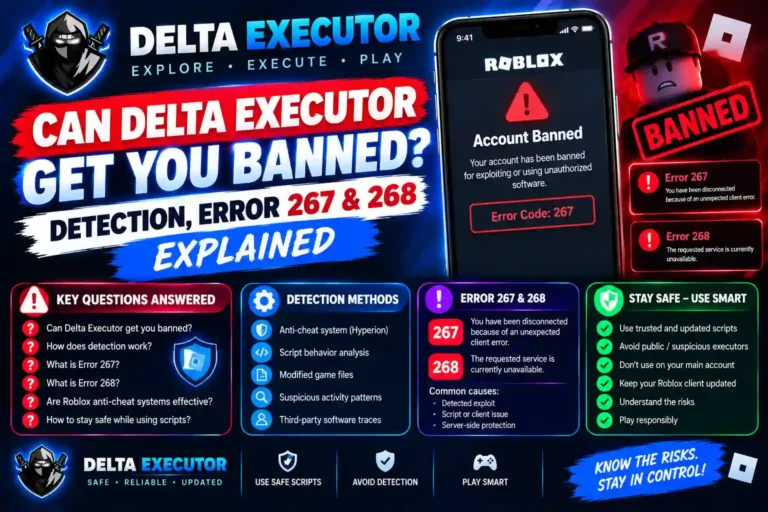
Roblox runs a kernel-level anti-cheat called Byfron Hyperion. It monitors for unauthorized memory injections, suspicious API calls, and processes that hook into the Roblox client. Detection triggers a session kick at minimum and a permanent account ban in confirmed cases. Delta’s developers work to keep injection patterns below the detection threshold, but no executor is permanently undetectable.
How to Install Delta Executor on Android
Android is the easiest platform to get Delta running on because it allows APK sideloading by default. You do not need root access. The whole process takes under five minutes.
Only download the Delta Executor APK from the official source linked through deltaexecutions.com. Fake APKs distributed through random Telegram groups and Discord servers frequently contain malware, keyloggers, and account-stealing code. Verify the file size and version number before installing.
Step-by-Step: Android Installation
- Enable Unknown Sources. Go to your Android Settings, then Security or Privacy (the label varies by manufacturer). Find the toggle for “Install Unknown Apps” or “Unknown Sources” and enable it for your browser or file manager. This allows sideloaded APKs to install.
- Download the APK. Visit the official Delta Executor download page through deltaexecutions.com and grab the latest APK. Do not install an older version unless you are specifically testing something, as outdated builds often fail after Roblox updates.
- Install the APK. Open your file manager, navigate to your Downloads folder, and tap the Delta Executor APK file. Android will prompt you to confirm the installation. Tap Install and wait for it to complete.
- Open Delta Executor. Find the app in your app drawer and launch it. On first launch it may ask for permissions such as storage access. Grant them so the app can save scripts and read files.
- Complete the key process. The app will prompt you to enter a key before you can use the execution features. See the key system section below for a full walkthrough.
- Launch Roblox alongside Delta. Keep Delta open in the background, then switch to Roblox and join a game. Return to Delta once you are inside a game session to begin injecting and running scripts.
If Android blocks the install with a Play Protect warning, tap “Install anyway.” Play Protect flags apps that are not distributed through the Play Store. This warning does not confirm the file is malicious, but it is a reminder to make sure you downloaded from the right source.
How to Install Delta Executor on iOS
iOS does not allow sideloading through a browser the way Android does. Instead, you install the Delta IPA file using a signing tool on your PC or Mac. The most common methods use AltStore or Sideloadly. Neither requires a jailbreak.
What You Need Before You Start
- A Windows PC or Mac (required for signing)
- A free or paid Apple ID
- AltStore or Sideloadly installed on your computer
- The Delta Executor IPA file from the official source
- A USB cable to connect your iPhone or iPad
Step-by-Step: iOS Installation via AltStore
- Install AltStore on your computer. Download AltStore from altstore.io and follow its setup instructions. AltStore requires Apple’s iTunes and iCloud components to be installed on Windows. On Mac, the setup is simpler.
- Install AltStore on your iPhone. Connect your iPhone via USB, open AltStore on your computer, and use the Install AltStore option while your device is connected. Trust the developer profile on your iPhone under Settings, General, VPN and Device Management.
- Download the Delta Executor IPA. Grab the official IPA file. Do not rename it or open it on your computer. Just save it to a location you can easily find.
- Sideload the IPA through AltStore. On your iPhone, open AltStore and tap the plus icon. Navigate to the IPA file you downloaded. AltStore will sign it with your Apple ID and install it.
- Trust the app profile. Go to Settings, General, VPN and Device Management, find the profile associated with your Apple ID, and tap Trust.
- Re-sign every seven days. Free Apple developer accounts allow apps to be signed for seven days before they expire. You need to re-sign the IPA through AltStore every week or purchase an Apple Developer account ($99/year) to extend this to one year.
Sideloadly works similarly to AltStore but has a slightly different interface. Some users prefer it because it handles the signing process in a single window. Both tools achieve the same result: a signed Delta Executor app on your iPhone or iPad without a jailbreak.
Understanding the Delta Executor Key System
The key system is the first thing that confuses new users. Here is exactly how it works and what to expect.
Delta Executor uses a key-based access model for its free tier. Every 24 hours, you need a new key to unlock the execution features. The key is not purchased. You earn it by visiting an ad-supported link page and completing a brief checkpoint. This is how the developers monetize the free version of the tool.
How to Get Your Key: Step by Step
- Open Delta Executor. Launch the app. If your previous key has expired, the app will show a key input screen immediately.
- Tap “Get Key.” The button appears on the key screen. Tapping it copies a link or opens a browser automatically, depending on your Delta version.
- Complete the checkpoint. The link takes you through an ad-link provider such as Lootlink or Work.ink. You will see a countdown timer and a “Continue” button. Expect pop-up ads. Close them and tap Continue when the timer finishes.
- Copy your key. After completing the checkpoint, the page displays your unique key. Copy it to your clipboard.
- Paste the key into Delta. Return to the Delta Executor app, paste the key into the input field, and confirm. In newer builds, the app reads the key automatically from your clipboard without requiring manual paste.
- Start executing. Once the key is accepted, the main interface unlocks and you can begin running scripts.
Each key lasts exactly 24 hours from the moment it is validated. After that, you repeat the process to get a new one. If you find this too frequent, the paid keyless version removes the requirement entirely and lets you use Delta without this daily step.
Common Key Problems and Fixes
| Problem | Likely Cause | Fix |
|---|---|---|
| Key says “invalid” | Key expired or copied incorrectly | Generate a new key. Check for extra spaces when pasting. |
| Checkpoint never loads | Ad blocker or VPN interfering | Disable ad blocker and try without VPN first. |
| Page loops without giving key | Link provider changed their flow | Use the alternate link provider listed in the Delta Discord. |
| Key accepted but app still locked | App cache or session issue | Force close Delta, clear cache, reopen, and re-enter the key. |
Delta Executor Interface Walkthrough
Once your key is accepted, you land on the main Delta interface. If you have never seen a script executor before, the layout can look unfamiliar. Here is what each part does.
The Script Tab
This is where you spend most of your time. The script tab is a large text area where you paste or type Lua code. Below the text area you will find the main action buttons. The Execute or Run button sends your code to the injected Lua environment inside the currently running Roblox game. The Clear button wipes the text area so you can start fresh.
The Saved Scripts Panel
Delta lets you save scripts so you do not have to paste them every session. You can name each saved script and organize them in a list. Tap a saved script to load it into the text area, then hit Execute. This is especially useful if you use the same farming script every day.
The Console Tab
The console tab shows real-time output from your scripts. When a script calls Lua’s print() function, the output appears here. Error messages also appear in the console when a script fails to run. Always check the console first if a script does not behave as expected. A red error line here tells you exactly what went wrong and on which line of your code.
The Script Hub
Newer builds of Delta include a built-in script hub. The hub is a curated list of popular scripts, organized by game. You browse the list, tap a script, and load it directly into the text area without leaving the app. This is a useful feature for beginners who do not yet know where to find scripts externally.
The Inject Button or Floating Icon
Before any script can run, Delta needs to inject its environment into the running Roblox process. On Android, a floating overlay button or icon appears once Roblox is running. On iOS, the injection often triggers automatically when you switch to Roblox. Watch for a visual indicator, usually a color change or a notification from Delta, that confirms injection was successful before you try to execute a script.
Always join a Roblox game first, wait for the game to fully load, and then inject. Injecting before the game loads fully often results in an injection failure or a crash. Once injection succeeds, paste your script and run it.
How to Run Your First Script with Delta Executor
Running your first script on Delta Executor follows the same core sequence every time. Once you learn it, it becomes second nature.
The Standard Execution Sequence
- Open Roblox and join a game. Start the Roblox app and join whatever game you want to run a script in. Let the game load completely. Do not attempt to inject during the loading screen.
- Switch to Delta Executor. Use your phone’s app switcher to bring Delta to the front without closing Roblox. Both apps must stay running simultaneously.
- Tap the inject button. Trigger the injection. Wait for the confirmation indicator. On Android this is usually the floating icon turning green or blue. On iOS you may see a brief notification from Delta.
- Paste your script. Go to the Script tab in Delta. Tap the text area and paste your Lua script. If you copied it from a script hub or website, it should paste cleanly. If the script is saved in Delta’s library, tap it to load it automatically.
- Tap Execute. Press the Execute or Run button. Delta sends the Lua code to the injected environment inside Roblox.
- Switch back to Roblox. Return to the Roblox app. Within a second or two, the script’s effects should appear. If the script opens a GUI menu, it will appear on screen. If it runs silently (like an auto-farm loop), it will operate in the background.
- Check the console if nothing happens. If you see no effect, switch back to Delta and look at the Console tab. An error message there tells you what failed and why.
Your First Test Script
If you want to verify that Delta is working without running anything complex, use this single-line Lua test:
print("Delta Executor is working")
Paste this into the script tab and execute it. Switch to the Console tab. If you see the text “Delta Executor is working” appear, injection and execution are both functioning correctly. You are ready to run real scripts.
Script Types Explained for Beginners
Not all scripts work the same way. Understanding the difference saves you from running the wrong one or wondering why a script does nothing in a particular game.
Universal scripts work across many different Roblox games without targeting any specific one. They typically include features like speed modification, jump power adjustments, noclip, and fly modes. Because they hook into standard Roblox character properties rather than game-specific values, they tend to survive across game updates. These are good starting scripts for beginners.
These scripts target the internal structure of a single Roblox game. A Blox Fruits auto-farm script reads the specific item names, boss spawn timers, and experience points tables that only exist in Blox Fruits. Run it in a different game and it does nothing because those internal references do not exist there. Game-specific scripts break more often after game updates because they depend on the game’s internal code.
Hub scripts load a full-featured graphical menu inside Roblox. From that menu, you choose which features to toggle on or off without returning to Delta. Popular hubs like Infinite Yield and Dex Explorer bundle dozens of options under one interface. They are especially useful when you want to explore what is possible without hunting for individual scripts. Most hubs are universal and work across many games.
Auto-farm scripts loop continuously in the background, performing actions like collecting items, defeating enemies, or completing quests without any input from you. You start the script, put your phone down, and the character farms automatically. These scripts consume more processing power and can make your Roblox client run slower. They also attract more attention from server-side detection if the automation patterns look inhuman to the game’s logic.
Where to Find Safe Scripts for Delta Executor
Finding the right scripts is one of the biggest challenges for new users. The community is large but scattered, and not every source is trustworthy. Here is where experienced users look and what red flags to avoid.
Trusted Sources
- ScriptBlox: A community script repository where scripts are submitted and rated by users. A script with thousands of uses and positive ratings over several months is generally more trustworthy than a freshly uploaded one. Always check the upload date and the comments section.
- V3rmillion forums: One of the oldest Roblox exploit communities. Scripts posted here often go through community review before gaining traction. The reputation system on the forum helps filter out malicious contributions.
- Delta’s built-in Script Hub: Scripts listed inside Delta’s own hub are the easiest starting point because the Delta team curates the selection. This is the safest starting point for complete beginners.
- GitHub repositories from known authors: Some script authors publish their work on GitHub with open-source code. Open-source scripts are easier to verify because you can read exactly what they do before running them.
Red Flags to Watch For
- Scripts that ask you to paste your Roblox cookie or login token anywhere. No legitimate script ever needs your authentication data.
- Scripts distributed only through a Telegram group with no public forum presence or version history.
- Scripts compressed in a RAR or ZIP file you have to extract before pasting. Lua scripts are plain text. There is no reason for them to come inside an archive.
- Scripts with zero user history or discussion anywhere online. If no one else has run it and written about it, you are the test subject.
Heavily obfuscated Lua code is very difficult to read, which makes it easy to hide malicious behavior. If a script looks like a wall of random characters and numbers, treat it as untrusted unless it comes from a developer whose work you have verified through an established community.
Safety, Risks, and What You Need to Know Before Using Delta Executor
This section covers the honest picture. There are real risks attached to using any executor, and you should understand them before you start.
Account Ban Risk
Roblox uses Byfron Hyperion, a kernel-level anti-cheat that monitors for memory injection. When it detects unauthorized code running in the Roblox process, it can kick you from the current session, apply a temporary ban, or issue a permanent ban. Permanent bans are generally not reversible. Your account, any purchased items, Robux balance, and game progress all disappear with it.
This is not a hypothetical risk. Roblox bans thousands of accounts for exploit use. The standard advice in the executor community is to use a secondary account that you do not care about rather than your main account. If losing your primary account would genuinely upset you, do not use any executor on it.
Malware Risk
The biggest real-world risk is not Roblox’s anti-cheat. It is fake executor downloads. Security researchers have documented cases where fake Roblox executor APKs installed remote access trojans that exfiltrated browser autofill data, cookies, and saved passwords. These were distributed as “updated” executor builds through unofficial Telegram channels and YouTube video descriptions.
Downloading Delta Executor only from verified official sources and checking file size and version numbers against what is listed on the official site are the strongest protections you have against this specific risk.
Legality
Using a script executor for Roblox does not violate any criminal law in most jurisdictions. It is a Terms of Service violation with Roblox Corporation, not a criminal offense. The consequence is account action by Roblox, not legal prosecution. However, some jurisdictions have computer fraud statutes that could theoretically apply to memory injection; this area of law is unsettled and rarely enforced against individual game players.
For the complete Terms of Service text, see Roblox’s official Terms of Use so you can read what you are agreeing to.
Responsible Use
Running scripts in private servers or solo games minimizes disruption to other players. Running an auto-farm in a competitive game where other real players are affected is very different from running a quality-of-life script in a solo session. The community’s general consensus is that scripting in a way that ruins another person’s experience is a separate ethical problem from using an executor at all.
Troubleshooting Common Delta Executor Problems
Most problems beginners run into fall into a small set of categories. Here is how to work through the most common ones.
| Problem | Cause | Solution |
|---|---|---|
| Scripts do not execute at all | Injection did not succeed | Trigger injection after fully loading into a game, not during the loading screen. Watch for the confirmation indicator before pressing Execute. |
| Delta crashes immediately on launch | Outdated build or conflicting cache | Uninstall Delta, clear residual cache, and reinstall the latest APK from the official source. |
| Roblox kicks you to the home screen after injection | Hyperion detected the injection | Wait for a newer Delta build. This usually means Roblox updated its detection and Delta’s current version is no longer safe to inject. Check the Delta Discord for an update status. |
| Script runs but nothing happens in game | Wrong script type for the game | Check the console for errors. The script may reference game objects that do not exist in the game you joined. Use the correct game-specific script. |
| Delta shows a blank white screen | WebView rendering issue on Android | Update Android System WebView through the Play Store. Delta’s UI uses a WebView component that breaks on very old versions of Android WebView. |
| iOS app expired and won’t open | 7-day free signing limit reached | Re-sign the IPA through AltStore or Sideloadly. You need to do this every seven days on a free Apple developer account. |
| Key checkpoint never ends | Ad blocker or VPN blocking the page | Disable your VPN and any browser-based ad blocker, then retry the key link in a clean browser session. |
If none of the above fixes your problem, the most reliable next step is to check the official Delta Discord server or the deltaexecutions.com site for an announcement. After a Roblox update, the team typically posts a status message within hours confirming whether a new Delta build is in progress or already released. See also our detailed post on fixing Delta Executor errors for more specific error code solutions.
Android vs iOS: How the Experience Differs
Delta Executor works on both Android and iOS, but the experience is meaningfully different on each platform. Here is a direct comparison so you know what to expect.
| Feature | Android | iOS |
|---|---|---|
| Installation method | APK sideload via browser (no PC needed) | IPA sideload via AltStore or Sideloadly (PC or Mac required) |
| PC required | No | Yes (for signing) |
| Expiry / re-signing | No expiry on install | Every 7 days (free Apple ID) |
| Injection method | Floating overlay button or tap | Auto-inject on app switch (varies by build) |
| Key system | Same key system, same 24-hour cycle | Same key system, sometimes different link provider |
| Update speed | New APK available same day as release | Slightly delayed due to signing requirements |
| Script compatibility | Full support | Full support (some GPU-heavy scripts may perform differently) |
| Setup difficulty | Easy (beginner-friendly) | Moderate (requires PC and extra steps) |
If you are on Android, you have the easier path. The APK installs directly from a browser with no additional tools. If you are on iOS, plan for about 20 extra minutes on your first setup to get AltStore running. After that, re-signing is quick and takes about two minutes each week.
Frequently Asked Questions
Is Delta Executor free to use?
Yes. Delta Executor is free to download and use. The free version requires a daily key to unlock execution. A paid keyless version exists that removes this requirement entirely and is the choice for users who find the daily key process inconvenient.
How long does the Delta Executor key last?
Each key grants 24 hours of access. After it expires, you complete the key checkpoint process again through the link provided inside the app. The process takes roughly five minutes each time.
Can Delta Executor get my Roblox account banned?
Yes. Roblox’s Byfron Hyperion anti-cheat system detects memory injection. If detected, your account can receive a permanent ban with no appeal. The community standard advice is to use Delta only on secondary accounts, never your main account that holds purchased items or Robux you care about.
What kind of scripts can I run with Delta Executor?
You can run universal Lua scripts that work across many games, game-specific scripts built for titles like Blox Fruits or Brookhaven, hub-style scripts that bundle multiple features into one in-game menu, and auto-farm loops that run background automation without manual input.
Does Delta Executor work on iOS without a jailbreak?
Yes. Delta Executor for iOS uses a sideloading method through AltStore or Sideloadly. No jailbreak is required. However, you need access to a PC or Mac for the signing step, and the app expires every seven days on free Apple developer accounts, requiring a re-sign.
Why does my script not execute after I press the run button?
The three most common causes are: Delta has not injected yet (wait for the confirmation indicator after joining a game), Roblox received an update since the last Delta build (check for a new Delta release), or the script itself has an error (check the Console tab for the red error message and line number).
Where do I find safe scripts to run on Delta Executor?
Trusted starting points are ScriptBlox, the V3rmillion forums, and Delta’s built-in Script Hub. Avoid scripts from unknown Telegram groups or Discord servers with no verifiable history. Never run a script that asks for your Roblox login cookie or authentication token under any circumstances.
What is the difference between the script tab and the console tab?
The script tab is where you paste or write Lua code and execute it. The console tab shows real-time output: print statements from scripts, confirmation messages, and error output when something fails. If a script does not work, the console is always the first place to look for a diagnostic message.
Does Delta Executor work on PC?
Delta Executor is primarily built for mobile. A PC version exists but receives updates less frequently than the mobile builds. For PC Roblox scripting, many users run Delta through an Android emulator like BlueStacks or LDPlayer. That approach lets you use the up-to-date mobile Delta build on a Windows machine.
What should I do if Delta Executor crashes on Android?
First, clear the app cache in Android settings under Apps, find Delta Executor, and tap Clear Cache. Next, uninstall and reinstall the latest APK from the official source. If crashes continue immediately after a Roblox update, the current Delta build is likely incompatible with the new Roblox version. Wait for the Delta development team to release a patched build, which usually arrives within a day or two.
Final Word: Start Simple, Stay Safe
Delta Executor is a capable Lua script executor and one of the best-maintained free options on mobile. Getting started is straightforward once you understand the three-step pattern: install the app, complete the daily key, and inject before you execute. That sequence covers 90% of what you need to know for basic use.
As a beginner, start with simple universal scripts before moving to game-specific ones. Use Delta’s built-in Script Hub before hunting for external scripts. Check the Console tab every time something does not work. And always keep your main Roblox account separate from your scripting account.
For the latest Delta Executor download, version history, and official guides, visit deltaexecutions.com. We update the site with every new Delta build and publish fix guides whenever a Roblox update breaks compatibility.

10 Comments