Delta Executor iOS Direct Install Without a Computer
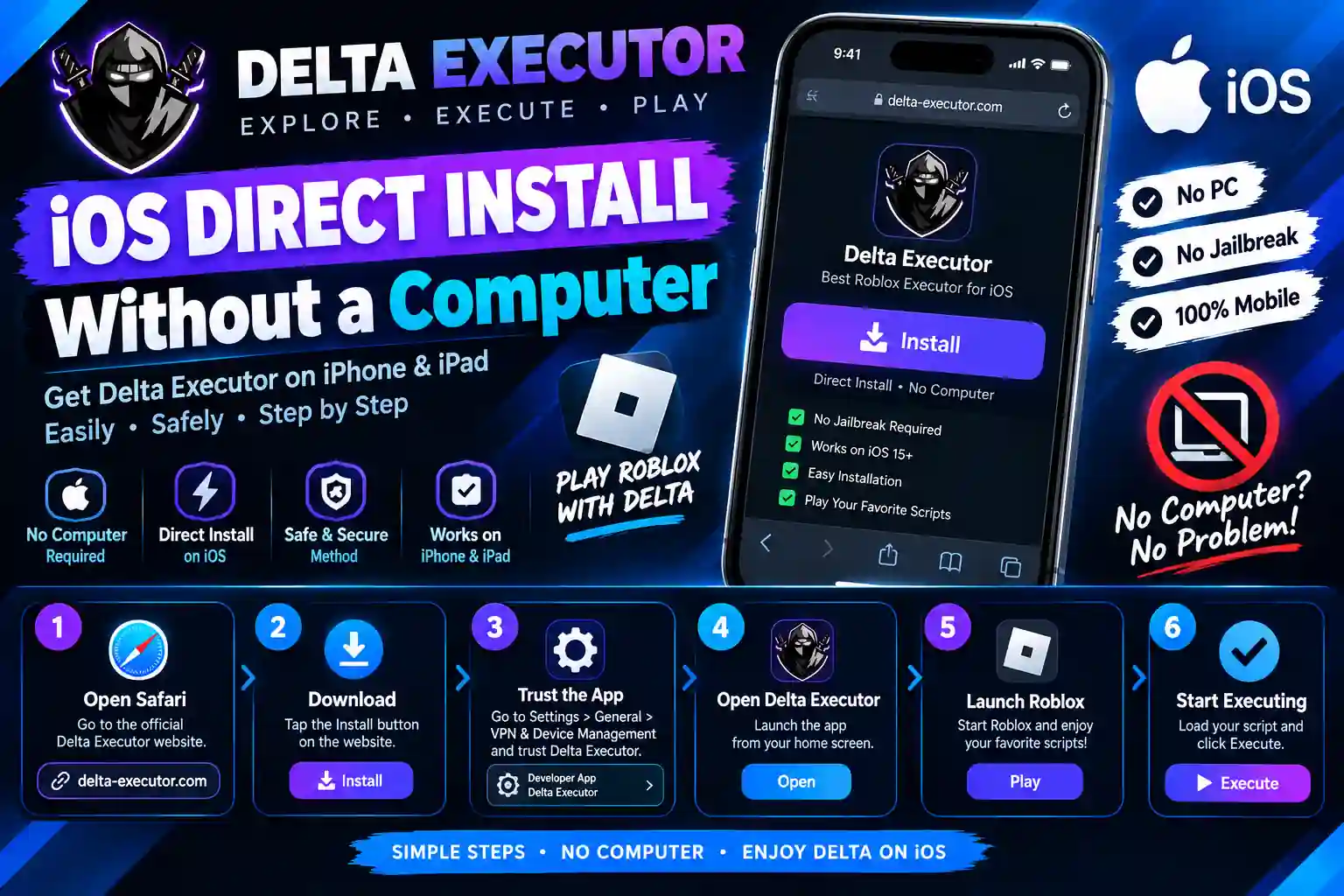
Installing Delta Executor on iOS is genuinely harder than most guides make it sound, and the honest reason is Apple’s code signing system. Unlike Android where you simply allow unknown sources and install an APK, iOS requires every app to be signed with a valid developer certificate before it will run. This guide covers the direct install method without a computer, explains why it sometimes stops working, and gives you the computer-based backup method that is more stable when the no-computer route fails.
The no-computer method uses a third-party signing service like Scarlet or ESign to install the Delta Executor IPA file directly on your iPhone or iPad. It works when those services have a valid certificate active. When they do not, the install button breaks and the computer method using Sideloadly or AltStore becomes the reliable alternative. Both methods are covered in full below. For the Android version, visit the Delta Executor homepage.
The iOS Reality Check: Why Installing Delta Is Different on iPhone
Before walking through any installation method, you need to understand one fundamental difference between Android and iOS that affects everything that follows.
Android allows you to install any APK file by enabling a single permission called Install Unknown Apps. The operating system trusts you to make that decision. iOS does not work this way. Every application on iOS must be cryptographically signed with a valid Apple developer certificate before the operating system will allow it to run. Without a valid signature, the app will not install regardless of what you do in Settings.
This is why Delta Executor on iOS requires extra steps that the Android version does not. You are not just downloading and installing a file. You are going through a process that either uses a third-party certificate signing service (the no-computer methods) or signs the IPA file yourself using a registered Apple developer account (the computer methods).
The practical consequence of this is that no-computer installs have a shorter lifespan. Third-party signing services use enterprise certificates that Apple routinely revokes when it identifies them as being used for unofficial app distribution. When a certificate gets revoked, every app signed with it stops working simultaneously. This is why the Delta iOS app sometimes simply stops opening with no warning.
The no-computer methods are more convenient but less stable. They will work well for days or weeks, then stop entirely when the certificate gets revoked. The computer methods require more initial setup but give you a 7-day signing window that you can refresh without redoing the full installation. Choose based on how much you value convenience versus stability.
What You Need Before Starting
Before using any installation method, make sure you have the following ready.
- An iPhone or iPad running iOS 15 or above. Delta Executor iOS is optimized for iOS 15 and later versions. Older iOS versions may not be compatible.
- The Delta Executor IPA file. Download this only from deltaexecutions.com. Do not download IPA files from third-party sites or Telegram groups as they may be modified versions containing malware.
- Enough free storage on your device. The IPA file and installed app together require at least 300 MB of free space.
- A stable internet connection during the installation process. Certificate validation requires a live connection to complete.
- For computer methods only: a Windows PC or Mac, a Lightning or USB-C cable, and either Sideloadly or AltStore installed on the computer.
Go to Settings then General then About to see your current iOS version. If you are on iOS 14 or below, update your device before attempting any installation method. iOS 15 or higher is required for Delta Executor iOS compatibility.
Method 1: Scarlet Direct Install (No Computer Required)
Scarlet is a third-party app installer for iOS that uses an enterprise certificate to sign and install IPA files directly on your device without needing a computer or a paid Apple developer account. It is currently the most commonly used no-computer method for Delta Executor iOS in 2026.
Step 1: Install Scarlet on Your iPhone
Open Safari on your iPhone. Go to the Scarlet official site and download the Scarlet installer profile. Safari will prompt you to allow the download. Tap Allow. After downloading, go to Settings then General then VPN and Device Management and tap the Scarlet profile. Tap Install and enter your passcode when prompted. Tap Install again to confirm.
Step 2: Open Scarlet and Navigate to the IPA Section
Open the Scarlet app after installation. You will see a main menu with options for featured apps and a section to install your own IPA files. Tap the button that allows you to add an IPA from your own files.
Step 3: Download the Delta Executor IPA
Before using Scarlet to install Delta, you need the IPA file on your device. Open Safari and go to deltaexecutions.com. Download the iOS IPA file from the downloads section. When Safari asks where to save it, choose Save to Files or Download. The file will land in your iPhone’s Files app under Downloads.
Step 4: Install the IPA Through Scarlet
Back in Scarlet, tap the option to install an IPA from files. Navigate to your Downloads folder in the Files picker and select the Delta Executor IPA file. Scarlet will begin the signing process. This typically takes 15 to 30 seconds depending on your internet connection speed.
Step 5: Trust the Certificate and Launch Delta
After Scarlet finishes signing, the app installs on your home screen. Before you can open it, you need to trust the developer certificate. Go to Settings then General then VPN and Device Management. Find the certificate associated with the Delta app and tap Trust. Confirm when prompted. Delta Executor is now ready to open.
If the install button in Scarlet does not respond or appears greyed out, the enterprise certificate that Scarlet is using has been revoked by Apple. This is a certificate-level issue, not a problem with your device or the IPA file. Check the Scarlet community or official Delta Discord to find out when a new certificate becomes available. Alternatively, use the computer method below which is not affected by certificate revocations.
Method 2: ESign Direct Install (No Computer Required)
ESign is an alternative to Scarlet that works on the same principle of using an enterprise certificate to sign IPA files directly on your device. The steps are slightly different but the outcome is the same.
- Open Safari on your iPhone and search for the ESign app. Download and install the ESign profile from the official ESign site. Follow the same profile installation process as described for Scarlet above through Settings then General then VPN and Device Management.
- Open ESign after installation. Tap the Apps tab at the bottom of the screen. You will see an option to import IPA files from your device storage.
- Download the Delta Executor IPA from deltaexecutions.com in Safari and save it to your Files app as described in the Scarlet method above.
- In ESign, tap Import IPA and navigate to your Downloads folder. Select the Delta Executor IPA file.
- ESign will show the app details and a Sign and Install button. Tap it. ESign will sign the IPA using its active certificate. The process takes 15 to 45 seconds.
- After signing completes, the app installs automatically. Go to Settings then General then VPN and Device Management to trust the developer certificate before trying to open Delta.
ESign vs Scarlet: Which Is Better?
Both tools use the same underlying mechanism. The main difference is certificate availability at any given time. If Scarlet’s certificate has been revoked and ESign has an active one, use ESign and vice versa. In practice, experienced iOS users keep both installed so they always have one working option when the other’s certificate goes down.
Method 3: Sideloadly (Computer Required, Most Stable)
Sideloadly is a Windows and Mac application that signs IPA files using your personal Apple ID and installs them on your connected iPhone. The resulting installation does not depend on enterprise certificates from third-party services, which makes it significantly more stable than the no-computer methods.
The limitation is that free Apple ID accounts can only sign apps for 7 days at a time. After 7 days, the app stops working until you sign it again. Reconnecting to your computer and refreshing the signature is all that is required. It takes about two minutes. Paid Apple Developer Program accounts extend this to a full year but cost $99 USD annually.
- Download Sideloadly from the official Sideloadly website on your Windows PC or Mac. Install it and open the application.
- Download the Delta Executor IPA from deltaexecutions.com onto your computer, not your iPhone.
- Connect your iPhone to your computer using a Lightning or USB-C cable. Trust the connection on your iPhone when prompted by tapping Trust and entering your passcode.
- In Sideloadly, drag the Delta Executor IPA file into the main window. Sideloadly will show the app name and bundle ID.
- Enter your Apple ID email and password in the Sideloadly login fields. Sideloadly uses this to generate a signing certificate from Apple’s servers. This does not give Sideloadly full access to your Apple account, only the signing API.
- Click Start. Sideloadly will sign the IPA and install it on your connected iPhone. The process takes one to three minutes depending on file size and connection speed.
- After installation, go to Settings then General then VPN and Device Management on your iPhone. Find the developer certificate associated with your Apple ID and tap Trust. Delta Executor is now ready to open.
Refreshing the 7-Day Signature
After 7 days the app will simply stop opening. To refresh it, connect your iPhone to your computer, open Sideloadly, and drag the same IPA file in again with your Apple ID. The refresh process is identical to the first installation and takes the same amount of time. You do not lose any data or settings when refreshing.
Method 4: AltStore (Computer Required, Automatic Refresh)
AltStore is a community-built alternative App Store for iOS that installs apps through sideloading using your Apple ID, the same mechanism as Sideloadly. The significant advantage of AltStore is that it includes a background refresh system. A companion app on your PC or Mac called AltServer can automatically refresh your sideloaded apps in the background when your iPhone is connected to the same Wi-Fi network, which effectively extends the 7-day limit without requiring you to manually reconnect anything.
- Download AltServer for Windows or Mac from the official AltStore website. Install and open it. AltServer runs as a menu bar or system tray app.
- Connect your iPhone to your computer and open iTunes (Windows) or Finder (Mac) to ensure your device is recognized.
- In the AltServer menu, choose Install AltStore and select your iPhone. Enter your Apple ID when prompted. AltStore will install on your iPhone.
- Trust the AltStore developer certificate on your iPhone through Settings then General then VPN and Device Management.
- Open AltStore on your iPhone. Tap the My Apps tab and then the plus button in the top-left corner.
- Navigate to the Delta Executor IPA file. You can airdrop the IPA from your computer to your iPhone, or download it in Safari on your iPhone and access it from the Files app.
- AltStore will sign and install Delta Executor. Once installed, AltServer on your computer will automatically refresh the signature whenever your iPhone and computer are on the same Wi-Fi network and AltServer is running.
How to Trust the Developer Certificate on iOS
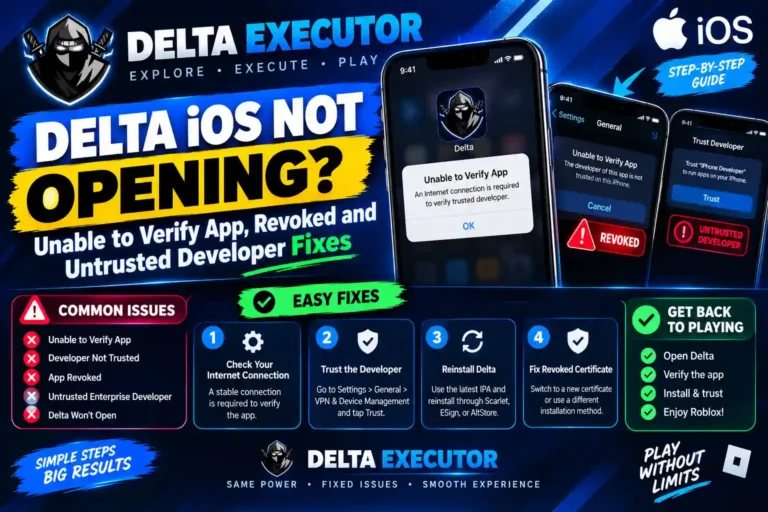
Every Delta Executor installation on iOS requires you to manually trust the developer certificate before the app will open. This step is the same regardless of which installation method you used. If you skip it, Delta will show an “Untrusted Developer” error when you tap the icon.
- Open the Settings app on your iPhone or iPad.
- Tap General near the top of the Settings menu.
- Scroll down and tap VPN and Device Management. This section shows all installed device profiles and developer certificates.
- Under the Enterprise App or Developer App section, find the certificate associated with the Delta Executor installation. It will typically show the name of the signing service or your Apple ID.
- Tap the certificate name. A screen appears showing the app associated with this certificate and a Trust button.
- Tap Trust and confirm in the dialog that appears. The app is now trusted and will open normally.
You only need to do this once per certificate. If the certificate gets revoked and you reinstall Delta using a new certificate, you will need to trust the new certificate the same way.
When Delta Executor iOS Stops Working: Certificate Revocation
One of the most common questions about Delta Executor iOS is why the app suddenly stops opening after working fine for days or weeks. The answer is almost always certificate revocation.
Apple monitors enterprise certificates and revokes them when it detects they are being used for public app distribution outside the App Store. When Apple revokes the certificate that signed your Delta installation, iOS detects the revocation through its online check and disables the app. The app icon remains on your home screen but tapping it produces an “App Cannot Be Opened” error or an “App Developer” warning.
There is no fix for a revoked certificate other than reinstalling Delta with a new active certificate. If you used Scarlet or ESign, check whether those services have obtained a new certificate and reinstall through the same process. If you used Sideloadly or AltStore, simply reconnect to your computer and re-sign the app with your Apple ID.
How to Tell If the Certificate Is Revoked
Go to Settings then General then VPN and Device Management. Find the certificate associated with Delta. If it shows a red status or displays “This certificate has been revoked” beneath the trust status, the certificate is gone. Reinstallation with a new certificate is the only resolution.
Reducing Revocation Disruption
The most reliable way to reduce disruption from revocations is to use the Sideloadly or AltStore method rather than the Scarlet or ESign methods. Your personal Apple ID certificate is private and only covers your own device, which means Apple has no reason to revoke it. Enterprise certificates used by Scarlet and ESign cover thousands of devices and are specifically targeted for revocation by Apple.
Delta Executor iOS vs Android: Key Differences
| Feature | iOS | Android |
|---|---|---|
| Installation method | IPA sideloading with certificate signing required | APK direct install after enabling unknown sources |
| Computer required | Optional (Scarlet/ESign work without one) | Never required |
| Installation stability | Certificate revocations can break app unexpectedly | Stable until Roblox build changes |
| Key system | Required, same as Android version | Required |
| App lifespan | 7 days with free Apple ID; indefinite with Scarlet when certificate is active | No expiry on the app itself |
| Roblox ToS risk | Same as Android, executor use violates Roblox ToS | Same risk level |
| Script compatibility | Some PC/Android-specific scripts may not work on iOS | Broader script compatibility |
| iOS version required | iOS 15 or above | Android 5.1 or above |
Troubleshooting Common Delta Executor iOS Issues
App Shows “Untrusted Developer” Error
You have not completed the certificate trust step. Go to Settings then General then VPN and Device Management, find the certificate, and tap Trust. This is required after every fresh installation.
Install Button Is Greyed Out in Scarlet or ESign
The signing service’s enterprise certificate has been revoked by Apple. Check the service’s official channels for a certificate update. As a temporary fix, switch to the computer method using Sideloadly or AltStore.
App Crashes Immediately on Launch
This most commonly happens on iOS versions below 15 or when the IPA file was downloaded from an unofficial source and is corrupted. Verify you are running iOS 15 or above. Redownload the IPA from deltaexecutions.com and reinstall.
Injection Fails or Does Nothing in Roblox
iOS injection is more restricted than Android due to iOS sandbox limitations. Delta Executor iOS works differently at the system level than the Android version. If injection fails, ensure you are using the correct procedure for the iOS version. Scripts that work on Android may not work identically on iOS because of platform-level differences in how Roblox runs on each operating system.
App Stops Opening After Several Days
The certificate has been revoked or the 7-day free signing window has expired. If you used Scarlet or ESign, reinstall using a freshly active certificate. If you used Sideloadly, reconnect to your computer and re-sign the IPA. The app will work again immediately after re-signing.
Sideloadly Shows “Error: Apple ID Not Trusted”
On your iPhone, go to Settings then General then VPN and Device Management and trust the certificate associated with your Apple ID. This error appears when Sideloadly successfully installed the app but you have not yet completed the trust step on the device.
If you are encountering executor-specific issues rather than installation problems, see our full Delta Executor not working fix guide for injection troubleshooting.
Frequently Asked Questions
Can I install Delta Executor on iPhone without jailbreaking?
Yes. All four methods described in this guide work on non-jailbroken iPhones. Jailbreaking is not required for Delta Executor iOS. The sideloading process through Scarlet, ESign, Sideloadly, or AltStore does not modify the iOS system partition and does not require root-level access.
Is there a direct install link for Delta Executor iOS?
The Delta team previously partnered with a third-party service that allowed single-tap direct install links. That partnership ended and the team now recommends against using direct install links from unofficial sources. The current recommended no-computer method is through Scarlet or ESign as described in this guide.
Why does Delta Executor iOS stop working after a few days?
There are two possible causes. If you used Scarlet or ESign, the enterprise certificate was likely revoked by Apple. Reinstall using a freshly active certificate. If you used Sideloadly with a free Apple ID, the 7-day signing window expired. Reconnect to your computer and re-sign the IPA to restore it.
Does Delta Executor work on iPad as well as iPhone?
Yes. The installation process is identical on iPad and iPhone. All four methods in this guide work on both devices as long as the device is running iOS or iPadOS 15 or above.
What is the difference between Scarlet and ESign?
Both are enterprise certificate-based sideloading tools for iOS. The main practical difference is certificate availability at any given time. If one service has a revoked certificate and the other does not, you use the working one. Experienced iOS users keep both installed as a backup for when one goes down.
Will Delta Executor iOS get my Roblox account banned?
The risk is the same on iOS as it is on Android. Using a script executor violates Roblox’s Terms of Service and there is a genuine possibility of account suspension or termination if detected. Use a secondary account rather than your main account when running scripts on any platform. For a full breakdown of the risk, see our Delta Executor safety guide.
Is Sideloadly safe to use?
Sideloadly is a well-established tool in the iOS sideloading community. It uses your Apple ID to sign apps through Apple’s official signing API. Sideloadly itself has been widely used without reported security incidents. However, entering your Apple ID credentials into any third-party tool carries inherent risk. Using an alternative Apple ID rather than your primary one reduces the exposure if Sideloadly’s servers are ever compromised.
Does Delta Executor iOS require a key?
Yes. The key system on iOS works the same as on Android. After installing and opening Delta, you need to complete the key verification process through the in-app key link before you can inject scripts. Get a fresh key every time after reinstalling the app due to a certificate revocation or signing expiry.
Can I use Delta Executor iOS without internet?
An internet connection is required for the key validation process on first launch and after reinstallation. Once the key is validated in a session, internet is still required for Roblox to function. Delta itself does not require a persistent internet connection beyond what Roblox needs to run.
What iOS version do I need for Delta Executor?
iOS 15 or above is required. Check your version by going to Settings then General then About. If you are on iOS 14 or below, update your device before attempting installation. Delta Executor iOS is optimized for iOS 15 and later versions.
Bottom Line on Delta Executor iOS
Installing Delta Executor on iPhone and iPad is achievable without a computer using Scarlet or ESign, but it requires accepting the reality that enterprise certificate revocations will break the app periodically. When that happens, reinstalling with a fresh certificate is the only fix. There is no workaround for a revoked certificate.
For the most stable experience, the Sideloadly or AltStore method using your personal Apple ID gives you a predictable 7-day signing window that you control rather than depending on a third-party certificate service. The setup takes longer once but removes the unpredictability of revocations.
For Android users who find iOS installation too complex, the Android version remains significantly easier to set up. Download it from deltaexecutions.com and follow the standard APK installation process.
Sources and References
- Apple developer code signing documentation — Apple Developer: Code Signing
- Apple Enterprise Program certificate policy — Apple Developer Enterprise Program
- Delta Executor official homepage — deltaexecutions.com



One Comment